Best Free PDF to Audio Converter Online
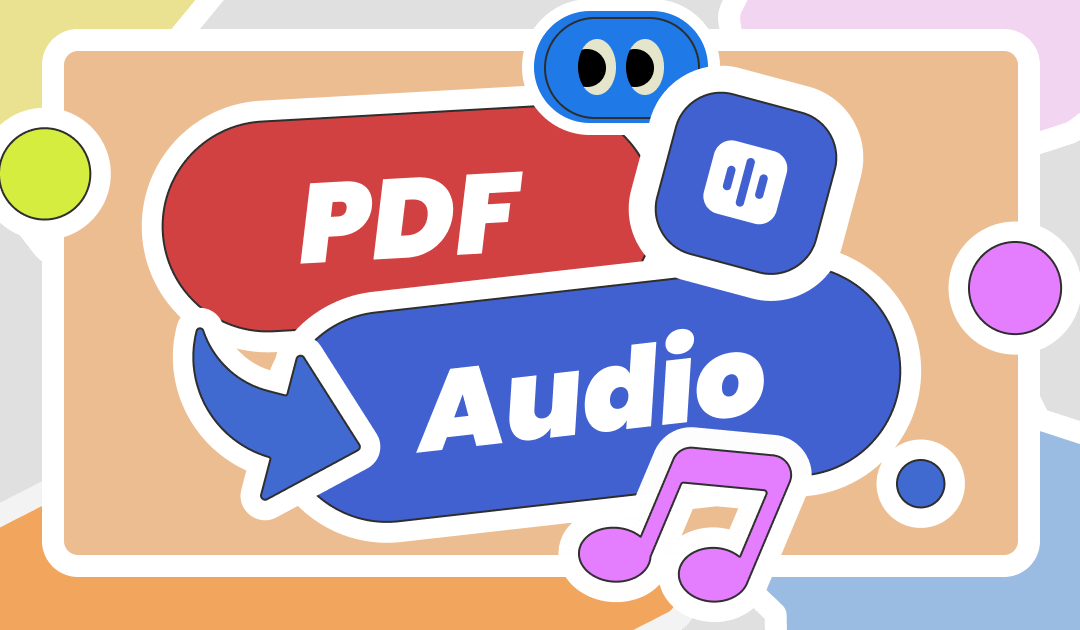
A free PDF to audio converter online allows you to turn written documents into spoken audio without reading every page yourself. These tools use text to speech technology to read PDF files aloud, making it easier to study, review documents, and access written information while doing other activities.
Whether you are a student, professional, researcher, or casual reader, converting PDF to audio can save time and improve access to information. Many online tools support different voices, languages, and reading speeds. Some also allow you to download the generated audio for offline listening.
However, not every PDF to audio converter offers the same features. Some work best with simple text documents, while others can process scanned pages, long reports, and academic materials. Choosing the right tool depends on your document type, preferred voice, file size, and need for audio downloads.
This guide explores the best free PDF to audio converter online options, explains how they work, and provides practical advice for choosing a suitable tool.
What Is a PDF to Audio Converter?
A PDF to audio converter is a tool that changes text inside a Portable Document Format file into spoken words. It uses text to speech technology to produce an audio version of the document.
For example, instead of reading a twenty page PDF on your computer or phone, you can upload the file to a compatible converter and listen to its contents through headphones or speakers.
Most tools follow a simple process. You upload a PDF, the software extracts its text, and a digital voice reads the content aloud. Depending on the service, you may be able to adjust the reading speed, select a language, choose a voice, or save the audio file.
Some tools also support scanned documents through optical character recognition, commonly called OCR. This technology identifies text within page images and makes it available for speech conversion.
Best Free PDF to Audio Converter Online Tools
Several online services can help you listen to PDF documents. The best choice depends on whether you want natural sounding narration, quick playback, accessibility features, or downloadable audio.
1. NaturalReader
NaturalReader is a text to speech service designed to read digital text aloud. It supports document reading and offers a range of synthetic voices, depending on the plan and available features.
Users can use compatible PDF files to listen to books, study notes, reports, and other written materials. Its interface is designed to make listening more convenient than reading long passages on a screen.
The free version has limitations, which may include restrictions on voice selection, usage time, or advanced features. Check the current plan details before choosing it for regular use.
NaturalReader is a suitable option for users who want a straightforward way to listen to documents with speech that can sound more natural than basic computer narration.
2. Speechify
Speechify is a text to speech platform that helps users listen to written content through digital voices. It supports document reading and offers tools for listening to different types of text.
It can be useful for students who want to review course materials, professionals who need to listen to reports, and readers who prefer audio over long periods of screen reading.
Speechify offers a free entry level experience, but voice options, listening limits, and other features depend on the current plan.
Before using it to convert a large PDF, check whether the free version supports your preferred voice, document length, and download requirements.
3. Adobe Acrobat Read Aloud
Adobe Acrobat includes a Read Aloud feature that can read supported PDF text using speech functionality. This is useful when your main goal is to listen to a document rather than create a separate audio file.
The feature can help you review reports, instructions, digital books, and other text based documents. Availability and the exact steps may vary by application version and device.
Unlike dedicated audio conversion services, Read Aloud is primarily intended for reading content within a PDF viewer. It does not necessarily provide a direct option to export the complete document as an MP3 file.
Adobe Acrobat is worth considering if you already use a compatible version of the application and want to listen to PDFs without uploading them to another website.
4. TTSReader
TTSReader is a text to speech tool that can read text aloud through a browser. It is useful for people who want a simple listening experience without installing a large application.
Depending on the available interface and input method, you may need to extract text from a PDF and paste it into the reader rather than upload the original file directly.
This approach works well for short documents, selected passages, articles, and study notes. It may be less convenient for lengthy PDFs that contain many pages or complex formatting.
Check the current features if you need direct PDF importing or downloadable audio.
5. ReadSpeaker
ReadSpeaker provides text to speech technology used in digital content and accessibility applications. Its tools can help make supported written information available through audio.
The exact features depend on the ReadSpeaker product or service being used. Some implementations focus on reading text on websites or within educational platforms rather than converting an uploaded PDF into a downloadable audio file.
It may be suitable for users who access documents through a school, workplace, or digital learning system that supports the technology.
Confirm whether your particular ReadSpeaker service supports standalone PDF conversion before relying on it for this purpose.
6. Microsoft Edge Read Aloud
Microsoft Edge includes a Read Aloud feature that can speak supported text in the browser. When a PDF opens correctly in Edge, this feature can provide a convenient way to listen to its contents.
It is particularly useful for people who want to listen while following the text on the screen. The experience can also help readers review documents without manually reading every paragraph.
However, Read Aloud is a reading feature rather than a complete PDF to MP3 converter. Audio export is not its primary purpose, and some PDFs may not work correctly if their text cannot be extracted.
It is a practical option when you want to listen online without creating a separate audio file.
Comparison of Free PDF to Audio Converter Options
The following table summarizes the main differences between these tools. Free access and supported features can change, so verify the current limits before uploading a document.
| Tool | Main purpose | Best suited for |
|---|---|---|
| NaturalReader | Text to speech | Listening to documents |
| Speechify | Text to speech and document reading | Study and productivity |
| Adobe Acrobat | PDF viewing and reading aloud | Listening within a PDF viewer |
| TTSReader | Browser based speech | Short text and passages |
| ReadSpeaker | Speech and accessibility technology | Supported digital learning content |
| Microsoft Edge | Browser based Read Aloud | Listening while viewing a PDF |
An important distinction is that reading a PDF aloud and converting it into a downloadable audio file are not the same thing. If you need an MP3 file for offline listening, choose a service that explicitly supports audio export in its free plan.
How to Convert PDF to Audio Online for Free
Most online PDF to audio converters follow a similar process. The exact steps depend on the service.
Step 1: Choose a suitable converter
Select a tool based on your needs. If you want natural narration, compare the available voices. If you need offline playback, look for free MP3 export. If your document contains scanned pages, check for OCR support.
Step 2: Upload your PDF file
Open the converter and use its upload option to select your document. Some services also accept files through drag and drop.
Before uploading, make sure the document is readable and does not contain sensitive information that you would not want to share with an online service.
Step 3: Select a voice and language
Choose the language that matches the document. If the service offers several voices, select one that is comfortable to listen to for an extended period.
Some converters let you change the speaking speed. A moderate speed is usually a good starting point because it makes the content easier to understand.
Step 4: Start the conversion
Begin the text to speech process. The service may need time to extract the document text and generate the narration.
For long PDFs, you may find it easier to process individual chapters or sections if the tool supports them.
Step 5: Listen to the audio or download it
Preview the result to check pronunciation, missing paragraphs, and reading order. If the service supports downloading, save the audio in the available format.
If the tool only provides playback, you can still listen online, but you may need another service if downloadable audio is essential.
Important Features to Look for in a Free PDF to Audio Converter
Choosing a tool involves more than finding one that accepts PDF files. Several features can affect the quality of your listening experience.
Natural sounding voices: Clear speech makes long documents easier to follow. Listen to a sample before processing an entire book or report.
Free usage limits: Some services limit the number of words, minutes, files, or voice options available without payment. Check these restrictions before uploading lengthy documents.
Audio downloads: If you want to listen without an internet connection, confirm that the free plan allows audio downloads.
Language support: Choose a service that supports the language used in your document. Multilingual documents may require additional processing.
OCR support: Scanned PDFs often contain page images rather than selectable text. OCR can help extract the words before speech conversion.
Reading speed controls: Adjustable speed allows you to slow down technical explanations or listen more quickly to familiar material.
Privacy and security: Review the service’s privacy policy and file retention practices. Avoid uploading confidential business documents, financial records, personal information, or unpublished research unless the service meets your security requirements.
Can You Convert a Scanned PDF to Audio?
Yes, but the process may require an additional step.
A standard PDF converter can usually extract text from a document that contains selectable text. A scanned PDF, on the other hand, may consist entirely of images of printed pages.
To convert such a file, use a service with OCR capabilities. OCR identifies the words in the page images and converts them into machine readable text. The text to speech tool can then read the extracted content aloud.
The result depends on the quality of the scan. Blurry images, unusual fonts, handwritten notes, and complex page layouts can cause recognition errors. Review the extracted text when accuracy matters.
Advantages of Converting PDF to Audio
PDF to audio conversion offers several practical benefits.
First, it supports multitasking. You can listen to documents while walking, travelling, or performing routine activities, provided you can do so safely.
Second, audio can make lengthy reading sessions more comfortable for people who experience eye strain or prefer spoken information.
Third, listening while following the text can help some readers notice errors, unfamiliar terms, or sections that need further review.
Finally, text to speech tools can improve access to written material for people who benefit from auditory learning or assistive reading features.
However, audio is not always a replacement for reading. Mathematical equations, tables, diagrams, footnotes, and complicated formatting may not translate well into speech. For these materials, following the original PDF alongside the narration can be more effective.
Frequently Asked Questions
1. What is the best free PDF to audio converter online?
The best option depends on your needs. NaturalReader and Speechify are worth considering for document narration, while Adobe Acrobat and Microsoft Edge are useful for reading supported PDFs aloud. Check the current free limits and audio export options before choosing.
2. Can I convert a PDF to MP3 for free?
Yes, some services provide free PDF to MP3 conversion. However, not every free tool supports downloading audio. Confirm that MP3 export is included in the free plan before starting.
3. Can I convert a PDF to audio without installing software?
Yes. Browser based converters allow you to upload supported PDF files and generate speech online. Some browser features can also read PDFs aloud without requiring a separate converter.
4. Can a free converter read a PDF aloud in different languages?
Many text to speech tools support multiple languages. Available languages and voice choices vary by service, and some options may require a paid plan.
5. How do I convert a scanned PDF into speech?
Use a converter that supports OCR. This technology extracts text from scanned page images so that a text to speech tool can read it aloud. Results may be less accurate when the scan quality is poor.
6. Is it safe to upload a PDF to an online audio converter?
Safety depends on the service and its data handling practices. Review its privacy policy, file storage rules, and deletion options before uploading documents. For confidential files, consider an offline tool or a trusted application that processes the document locally.