How to Increase Resolution of an Image Online Free
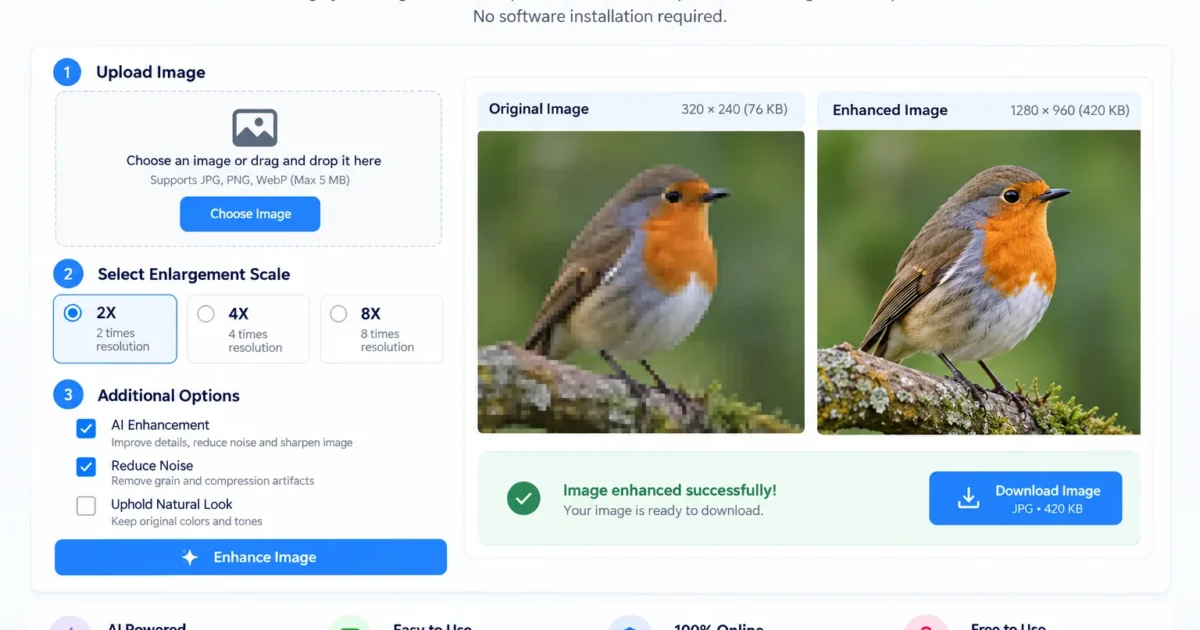
Increasing the resolution of an image online for free is a simple way to improve pictures that look blurry, pixelated, or too small. Whether you want to prepare a photo for printing, improve an old picture, create clearer images for social media, or use a picture on a website, online image tools can help you enlarge images without installing software.
Tools such as the image tools available on Metaseo.online provide an online option for users who want to work with images directly in their browser. Depending on the available features, you can use online image tools to adjust image dimensions or improve the appearance of a picture.
Many image enhancement tools also use artificial intelligence to enlarge images and estimate missing details. However, increasing image resolution does not always restore every detail. The result depends on the original image, the enlargement method, and the capabilities of the tool.
This guide explains how to increase image resolution online for free, how to use online image tools, how to choose the right image size, and how to avoid common mistakes.
What Does Image Resolution Mean?
Image resolution refers to the amount of pixel information in a digital image. A pixel is a tiny unit of color that combines with other pixels to create a picture.
For digital images, resolution is commonly described by the width and height in pixels.
For example, an image measuring 800 by 600 pixels contains 480,000 pixels. An image measuring 1600 by 1200 pixels contains 1.92 million pixels.
The second image has four times as many pixels as the first. This allows it to display at larger dimensions, although the number of pixels alone does not determine how clear or detailed the image looks.
Image quality also depends on focus, lighting, compression, and the amount of detail captured in the original picture.
Image Resolution and Image Quality
Resolution and image quality are related, but they are not the same.
A high resolution image contains more pixels, but it can still look blurry if the original photograph was out of focus. Similarly, a low resolution image may look clear when displayed at a small size.
Increasing resolution makes an image larger in pixel dimensions. Improving image quality may also involve sharpening edges, reducing noise, correcting colors, and removing compression artifacts.
Understanding this difference helps you choose the right online image tool for your needs.
Why Increase Image Resolution Online?
There are several reasons to increase the resolution of a picture. Online tools are useful when you need a quick result without installing an image editing program.
Improve Blurry or Pixelated Pictures
Small images can look pixelated when enlarged because the original pixels become more visible.
An image upscaler estimates additional pixels to create a larger picture. AI based tools can also estimate missing textures and edges, which may make the result look more natural.
However, an upscaler cannot always recover the original details that a camera never captured.
Prepare Images for Printing
Images used for printing often need more pixels than images displayed on a screen.
A small photograph may look acceptable on a phone but appear rough when printed as a large poster. Increasing its resolution can help, especially when the original picture contains enough useful detail.
For professional printing, consider both pixel dimensions and the required print resolution.
Improve Product Photos
Online stores need clear product images to help customers understand what they are buying. A small product photograph may not show important details when displayed on a larger screen.
Increasing resolution and applying careful sharpening can make product images more suitable for product pages, catalogs, and promotional materials.
Restore Old Digital Photos
Older digital pictures often have small dimensions because older cameras and phones captured fewer pixels.
An image enhancement tool can enlarge these photographs and improve some visible details. It may also reduce noise or soften compression artifacts.
Keep the original file because enhancement tools can sometimes change facial features, textures, or other important details.
Create Images for Websites and Social Media
Websites, blogs, presentations, and social media posts often require images at specific dimensions.
Increasing resolution can help when your source picture is too small for the intended layout. Nevertheless, use suitable image dimensions for each platform to avoid unnecessary enlargement and large file sizes.
How to Increase Resolution of an Image Online Free
You can increase image resolution in a browser by using an online image tool. The exact steps depend on the service, but most tools follow a similar process.
Step 1: Choose an Online Image Tool
Start by choosing an online tool that supports the image changes you need.
Metaseo.online Image Tools is one option to consider when looking for browser based image utilities. Before using any tool, check which features it currently offers and whether it supports image enlargement, resizing, or resolution related adjustments.
If you specifically want AI image upscaling, confirm that the selected tool includes AI enhancement. Ordinary image resizing and AI upscaling perform different functions.
Also check whether the service allows free downloads, supports your image format, and places limits on file size or output dimensions.
Step 2: Upload Your Image
Open the selected image tool and choose the option to upload a picture, if the tool requires an upload.
Select the image from your device. Common formats include JPEG, PNG, and WebP, although support varies between tools.
Use the highest quality version of the original image available to you. Avoid uploading a screenshot of a picture if you can access the original file.
Screenshots may contain additional compression, interface elements, or reduced image dimensions.
Step 3: Adjust the Image Dimensions
Look for options that let you change the image width and height.
For example, you may want to increase an image from 1000 by 750 pixels to 2000 by 1500 pixels. This doubles both dimensions and creates four times as many pixels.
If the tool offers a scale setting, you may see options such as two times or four times enlargement.
Choose the smallest size that meets your needs. A moderate increase may preserve the original appearance better than an aggressive enlargement.
Remember that changing image dimensions is not the same as restoring missing detail. A basic resizer can create a larger file without making the picture noticeably sharper.
Step 4: Apply Image Enhancement if Available
If the tool provides sharpening, noise reduction, or AI enhancement, use the features that suit your image.
AI enhancement may estimate missing textures and improve the appearance of edges. Sharpening can make some details appear clearer, while noise reduction can reduce unwanted grain.
Use these features carefully because excessive processing can make a picture look artificial.
If you are using Metaseo.online Image Tools, select the relevant image utility based on the functions available on the website. Do not assume that every image utility includes AI based enlargement.
Step 5: Preview the Result
Compare the edited image with the original before downloading it.
Look closely at faces, text, edges, hair, product details, and background textures. These areas can reveal whether the tool has improved the picture or introduced unwanted changes.
If the image looks unnatural, try a smaller enlargement or reduce the sharpening level when those controls are available.
For pictures containing text or logos, make sure the shapes and letters remain accurate.
Step 6: Download and Check the Image
When you are satisfied with the result, download the processed image if the tool provides a download option.
Save the enhanced picture in a suitable format. PNG is useful for graphics and images that need lossless storage. JPEG is often suitable for photographs because it can provide a smaller file size.
After downloading, check the actual width and height in pixels. Confirm that the image meets the requirements of your website, document, social media post, or print project.
Best Free Methods to Increase Image Resolution
Not every image requires the same approach. The best method depends on the original picture and how you plan to use it.
Use an AI Image Upscaler
AI image upscaling is useful when you want to enlarge a photograph and improve its appearance at the same time.
Traditional resizing estimates new pixel values from existing pixels. AI upscalers use learned patterns to estimate plausible details and textures.
This can help with portraits, product photos, landscapes, and older digital images.
However, AI may generate details that were not present in the original picture. This matters when accuracy is important, such as when enhancing historical records or photographs used as evidence.
Use an Online Image Resizer
An online image resizer lets you change the width and height of an image.
This method works well when you need specific pixel dimensions and the source image is already reasonably clear.
For example, you might resize a picture from 1200 by 800 pixels to 1800 by 1200 pixels. The image becomes larger, but ordinary resizing does not necessarily add meaningful new detail.
Metaseo.online Image Tools can be considered when you need an online image utility. Check the available features to determine whether they meet your particular resizing or image preparation needs.
Use an Image Editor With Sharpening Tools
Some online image editors include resizing, sharpening, contrast adjustment, and noise reduction.
These tools give you more control over the final appearance. You can enlarge the image and then make small adjustments to improve clarity.
This approach may work well for diagrams, screenshots, and product photographs that need minor corrections.
Be careful with sharpening. It can make edges appear clearer, but it cannot reliably recover details that are completely missing.
Use AI Enhancement for Old Photos
Older photographs may benefit from a tool that combines enlargement with noise reduction and face enhancement.
This method can improve the appearance of low resolution portraits and scanned pictures.
For important family photographs, keep an untouched copy of the original. AI enhancement can change facial features, skin texture, or small background objects.
How to Choose the Right Image Resolution
The right resolution depends on where you intend to use the image.
For Websites and Blogs
Website images should be large enough to look clear in their intended display area without creating unnecessarily large downloads.
For example, a picture displayed at 800 pixels wide may need a larger source image on a high density screen. However, uploading an extremely large file can increase loading time.
Choose suitable dimensions, compress the image carefully, and use a format supported by your website.
For Social Media
Social media platforms often resize and compress uploaded images.
Prepare images using the dimensions recommended by the platform when possible. Increasing resolution far beyond those requirements may not improve the final result because the platform may process the image again.
Check the finished image after uploading if visual quality is important.
For Printing
Print quality depends on both pixel dimensions and the physical size of the printed image.
A common target is 300 pixels per inch for detailed prints viewed at a normal distance. Some posters and large prints can work well at lower pixel densities because people view them from farther away.
For example, a photograph intended for a print measuring 8 inches wide at 300 pixels per inch would ideally be 2400 pixels wide.
Increasing resolution may help a small photograph reach the required dimensions, but it does not guarantee the same detail as an original photograph captured at that size.
For Product Images
Use dimensions that allow customers to inspect the product clearly.
Avoid excessive sharpening, distorted edges, or AI generated textures that change the appearance of the product. Accurate product images are more important than making every detail look artificially sharp.
Tips for Getting Better Results
A few simple practices can help you improve an image without sacrificing too much quality.
Start With the Best Original File
Always use the highest quality source available. A full size original photograph is generally a better starting point than a compressed thumbnail.
If the picture came from a messaging app or social media platform, check whether you can obtain the original file instead.
Avoid Enlarging an Image Too Much
A large enlargement does not always produce a better picture.
Increasing a small image by four times may create a useful result, but pushing it to a much larger size can reveal artificial textures and distorted details.
Start with a moderate scale and compare the output before choosing a larger one.
Preserve the Original Image
Save the enhanced image as a new file rather than replacing your original.
This allows you to compare the results, try another tool, or return to the source if the enhancement introduces errors.
It is particularly important for old family photographs, business documents, and product images.
Check Image Dimensions After Downloading
Do not rely only on how large the image looks on your screen.
Check the actual width and height in pixels. If you need the image for printing, also consider the intended print dimensions and pixel density.
Remember that changing a resolution setting in an image editor does not always add pixels. Some settings only change the reported print size.
Review Free Tool Limits
Free online services may have limits on file size, processing speed, enlargement scale, or daily downloads.
Some may place watermarks on enhanced images or require payment for high resolution exports. Check these conditions before processing several images.
If you are working with confidential photos, identity documents, or private business images, review the site’s privacy policy and file retention practices. Avoid uploading sensitive files to services you do not trust.
Common Mistakes to Avoid
Understanding common mistakes can help you get more reliable results.
Confusing Resolution With Sharpness
Increasing pixel dimensions does not automatically make an image sharper. A picture can have many pixels and still look blurry.
Use image enhancement or careful sharpening when appropriate, but remember that severe blur may not be reversible.
Choosing the Largest Scale Every Time
The highest enlargement setting is not always the best choice. Larger outputs can make AI artifacts and inaccurate details more noticeable.
Select the scale that provides enough pixels for your intended use while keeping the image natural.
Saving in a Low Quality Format
Repeatedly saving a JPEG image at low quality can introduce compression artifacts.
When editing a photograph, keep the original file and avoid unnecessary repeated exports. Choose an appropriate output quality when the tool provides that option.
Ignoring the Intended Use
An image for a small website thumbnail does not need the same dimensions as a large printed poster.
Determine the required display or print size before enlarging the image. This helps you avoid unnecessary processing and oversized files.
Assuming AI Restores the Exact Original Details
AI enhancement estimates missing visual information. It does not always recover the precise details that existed in the original scene.
For artistic use, the result may be acceptable. For scientific, legal, historical, or other accuracy sensitive purposes, do not treat reconstructed details as verified facts.
Frequently Asked Questions
| Questions | Answers |
|---|---|
| Can I increase image resolution online for free? | Yes. Many online image tools offer free resizing or enlargement, although some limit output size, daily use, or available features. |
| Can I use Metaseo.online Image Tools to work with images? | Metaseo.online provides an image tools section to consider for online image tasks. Check the current available utilities to confirm whether the specific resizing or resolution feature you need is supported. |
| How can I increase image resolution without losing quality? | Start with the highest quality original, use a moderate enlargement scale, and avoid excessive sharpening or repeated compression. Some quality loss or artificial details may still occur. |
| Can I increase image resolution without installing software? | Yes. Browser based image tools let you process pictures online without installing a desktop program. |
| Does increasing resolution make a blurry image clear? | It may improve the appearance of mild blur or pixelation, but it cannot reliably restore details that are completely missing from the original image. |
| What is the best resolution for printing a photo? | A common target is 300 pixels per inch for detailed prints. The required pixel dimensions depend on the physical print size and viewing distance. |
Increasing image resolution online for free is a practical way to prepare pictures for websites, social media, printing, and personal projects. Choose a suitable online image tool, upload the best available original, select an appropriate enlargement scale, and review the result before downloading it.
Metaseo.online Image Tools is an option to explore when you want to work with images in your browser. Check its available features to find the utility that matches your needs, whether you want to resize a picture or prepare it for another use.
For the best outcome, focus on the purpose of the image rather than simply choosing the largest available resolution. A carefully enlarged picture with natural details is often more useful than a much larger image with visible artifacts.