Best Free Favicon Generators for Websites
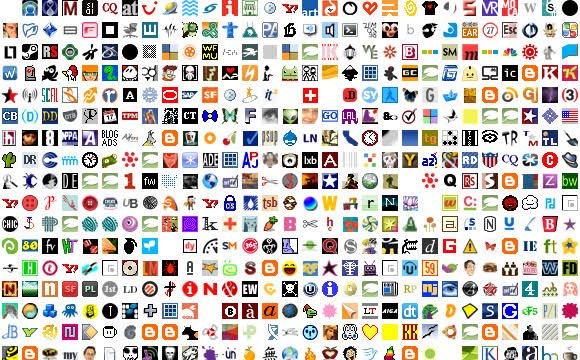
A favicon is a small icon that represents a website in browser tabs, bookmarks, search results, and other places. It helps visitors recognize a website and makes its online identity more consistent. Although favicons are small, they play a useful role in website branding and navigation.
You do not need advanced graphic design skills to create one. Several free favicon generators allow you to upload an image, design a simple icon, or convert an existing logo into favicon files. Many of these tools also generate the formats and sizes needed for different browsers and devices.
The best free favicon generators for websites offer simple editing features, useful download options, and clear instructions for adding icons to a website. Some focus on converting images, while others provide design tools or generate complete favicon packages.
In this guide, we explore some of the best free favicon generators, their main features, and how to choose the right tool for your website.
What Is a Favicon Generator?
A favicon generator is an online tool that creates small icons for websites. It usually accepts an image, such as a logo, and converts it into the appropriate formats and sizes for web browsers.
Some generators also allow users to create icons from scratch using basic shapes, text, and colors.
A favicon generator can save time because you do not have to resize images manually or create separate files for every supported device. Depending on the tool, you may also receive HTML code that you can add to your website.
These tools are useful for bloggers, business owners, developers, online stores, and anyone who manages a website.
Best Free Favicon Generators for Websites
1. Favicon.io
Favicon.io is a popular option for creating favicons from text, images, or emoji characters. It offers a straightforward interface that makes the process accessible to beginners.
The text generator allows you to create a favicon using a letter or a short combination of characters. You can adjust the background color, text color, and font to match your website’s branding.
If you already have a logo, you can upload an image and convert it into favicon files. The tool also provides downloadable files in commonly used formats.
Favicon.io is suitable for personal blogs, small business websites, and simple web projects. Its different creation methods make it useful for people who do not have a finished logo.
Best for: Beginners who want to create a favicon from text or convert an existing image.
2. RealFaviconGenerator
RealFaviconGenerator helps website owners prepare favicons for different browsers, platforms, and devices. It focuses on compatibility and provides configuration options for creating a more complete favicon package.
Users can upload an image and adjust how it appears in different environments. The generator can prepare files for desktop browsers, Apple devices, and other supported platforms.
It also provides implementation instructions and HTML code for adding the generated icons to a website.
This tool is particularly useful when you need more than a single browser icon. However, its configuration options may require a little more attention than simpler generators.
Best for: Website owners who need detailed favicon settings and support for multiple platforms.
3. Favicon Generator by Favicongenerator.com
Favicongenerator.com provides a simple way to convert an existing image into favicon files. The process generally involves uploading a suitable image, generating the required files, and downloading the results.
This type of tool is useful when you already have a logo and want to prepare it for browser tabs without opening a graphic design application.
Before uploading your image, choose a clear design that remains recognizable at a small size. Detailed illustrations and long text can become difficult to see when reduced.
The available output formats and options may vary, so review the generated files before adding them to your website.
Best for: Users who need a straightforward image conversion tool.
4. Genfavicon
Genfavicon is designed to help users create favicons from existing images. It allows you to select an image, choose a suitable section, and prepare an icon at a smaller size.
Cropping is helpful when your original logo contains extra space around the main design. By selecting the important part of the image, you can create a favicon that is easier to recognize.
The tool is particularly useful for simple projects where you want to convert a logo or photograph into a small website icon.
Because its interface and supported features may differ from more modern tools, check the final output to make sure it meets your website’s requirements.
Best for: Users who want to crop and resize an existing image for favicon use.
5. ICO Convert
ICO Convert is an online image conversion tool that can turn common image files into Windows icon files. It also offers options for adjusting an image before conversion.
This is useful when your website or project requires an ICO file. You can upload an image, select the available icon sizes, and download the converted result.
The ability to adjust the image before conversion can help you prepare a suitable icon from an existing logo.
Keep in mind that an ICO file alone may not cover every favicon requirement for modern websites. You might also need PNG files and additional configuration for certain devices.
Best for: Users who specifically need an ICO favicon file.
6. Canva
Canva is a graphic design platform that can help you create a favicon before converting it into the necessary website formats.
You can start with a square design and use text, shapes, colors, or an existing logo to create a simple icon. Its visual editing interface is useful for people who want more control over the appearance of their favicon.
Some design elements and features require a paid plan, but you can create basic designs using available free features.
After designing your icon, export it as an image format supported by your chosen favicon generator. You can then convert it into the required sizes and formats.
Best for: Users who want to design a custom favicon rather than simply convert an existing image.
7. Adobe Express
Adobe Express provides visual design tools that can help you prepare a favicon for a website. You can use a simple square canvas to create an icon based on your brand colors, initials, or logo.
The platform includes templates and editing features that can make basic design work easier. However, the availability of specific assets and features depends on the plan.
For the best result, keep the design simple. A favicon has limited space, so a recognizable letter, symbol, or simplified logo often works better than a detailed image.
Once your design is ready, export it and use a favicon conversion tool if you need additional sizes or formats.
Best for: Users who want more creative control over their favicon design.
8. X Icon Editor
X Icon Editor is a browser based tool designed for creating and editing small icons. Its editing approach is useful for users who want to work directly with individual pixels rather than rely entirely on an existing logo.
Read also: Best Free Meta Title and Meta Description Checker Tools
This can be helpful when designing a simple symbol that needs to remain clear at a very small size.
Pixel based editing also gives you control over individual parts of the design. However, it may take longer to use than an image conversion tool, especially if you are unfamiliar with icon editing.
Check the available export formats before starting if your website requires a specific file type.
Best for: Users who want to create or edit simple icons with detailed control.
9. Favicon.cc
Favicon.cc is an online tool that allows users to create and edit small icons using a pixel based interface. It is suited to simple designs that do not require complex illustrations.
You can work with individual pixels to build a symbol, adjust its appearance, and prepare an icon for your website. This approach gives you control over the final result but requires some patience.
The tool is especially useful for basic icons, geometric shapes, and small symbols that do not need to reproduce a detailed logo.
For a professional website, make sure the finished icon matches your existing brand colors and remains easy to identify.
Best for: Users who want to draw a favicon directly in their browser.
10. Favicongenerator.net
Favicongenerator.net is another option for creating favicon files from an existing image. It is designed for users who want a relatively simple conversion process without installing desktop software.
You can use a suitable logo or square image as the starting point, generate the favicon files, and download the output.
Before using any generated package, review the available formats and implementation instructions. Some websites need several icon sizes or additional HTML settings to display their favicons correctly across different environments.
Best for: Website owners who want a basic online favicon conversion tool.
How to Choose the Best Free Favicon Generator
The right tool depends on your design needs and technical experience. Before choosing a generator, consider the following factors.
Ease of Use
If you are new to website design, choose a tool with a simple interface and clear instructions. Image conversion tools are usually easier to use than pixel based editors.
A straightforward process can help you create and install a favicon without spending time learning advanced design features.
Supported File Formats
Check which formats the generator provides. PNG and ICO are common choices for website favicons, although the best format depends on your implementation and browser support requirements.
A generator that offers several useful formats can reduce the need for additional conversion tools.
Image Quality and Size
Your favicon should remain recognizable when displayed at a small size. Choose a high quality source image and avoid unnecessary details.
Square images are generally convenient for favicon creation. A simple design with good contrast is often more effective than a complicated logo.
Customization Options
Some generators only convert images, while others let you change colors, crop designs, or create icons from text.
Choose a tool that provides the features you actually need. If you already have a finished logo, a conversion tool may be enough. If you need a new design, consider a visual editor.
Installation Instructions
Some favicon generators provide HTML code and instructions for adding files to your website. This can be useful if you are unfamiliar with website configuration.
If you use a content management system, check whether it supports favicon uploads through its settings. This may be easier than editing website code manually.
How to Create a Favicon for Your Website
Creating a favicon usually involves a few simple steps.
First, prepare a square image containing your logo, initials, or chosen symbol. Use a design that remains clear when reduced to a small size.
Second, open your preferred favicon generator and upload the image. If the tool offers cropping or resizing options, adjust the image so the main design fits properly.
Third, generate the favicon files and download them. Review the available formats and choose the files appropriate for your website.
Fourth, upload the files to your website or use your website platform’s favicon settings. If you are installing the favicon manually, add the appropriate HTML references to your page’s head section.
Finally, open your website in a browser and check whether the icon appears correctly. If it does not appear immediately, clear the browser cache or wait for the browser to refresh its stored favicon.
Tips for Creating an Effective Website Favicon
A good favicon should be simple, clear, and consistent with your website’s identity.
Use your existing logo or brand colors when possible. This helps visitors connect the icon with your website.
Avoid long words and complicated illustrations. Small icons have limited space, and too many details can make the design difficult to recognize.
Test the favicon at different sizes before publishing it. An icon that looks clear on a large image preview may become unclear when displayed in a browser tab.
Also, make sure the favicon files are installed correctly. Even a well designed icon will not appear if the file path or HTML configuration is incorrect.
Frequently Asked Questions
1. What is the best free favicon generator?
The best choice depends on your needs. Favicon.io is useful for creating icons from text or images, while RealFaviconGenerator offers more detailed configuration options for different platforms.
2. Can I create a favicon without design skills?
Yes. Many free favicon generators allow you to upload an existing logo or create an icon using text and simple colors. You do not need professional design experience to make a basic favicon.
3. What size should a website favicon be?
Common favicon sizes include 16 by 16 pixels and 32 by 32 pixels. Larger PNG images, such as 180 by 180 pixels for Apple touch icons, may also be needed for particular platforms. Requirements depend on how the favicon will be used.
4. Which file format is best for a favicon?
PNG is useful for modern website icons because it supports transparency. ICO remains a common option for browser compatibility. Some websites use multiple formats to support different environments.
5. Are free favicon generators safe to use?
Many favicon generators can be used without installing software. However, you should review the website’s privacy practices before uploading sensitive images or proprietary brand assets. Download files only from services you trust.
6. How do I add a favicon to my website?
You can usually upload the icon through your website platform’s settings. Alternatively, upload the favicon files to your website server and add the appropriate HTML references in the head section of your pages. The exact process depends on your website platform.
Conclusion
Free favicon generators make it easier to create website icons without advanced design skills or paid software. Some tools focus on converting existing images, while others offer features for creating custom designs and preparing files for different platforms.
Favicon.io is a practical starting point for beginners, while RealFaviconGenerator is worth considering when you need more detailed configuration options. Canva and Adobe Express can help when you want to design an icon before converting it into website ready files.
Choose a tool that matches your requirements, keep the design simple, and test the finished favicon in your browser. A clear and properly installed favicon can support consistent website branding and help visitors recognize your site.