10 Best Free Online Tools for Adding Text to PDF Documents
PDF documents are widely used for business reports, application forms, contracts, invoices, study materials, and personal records. However, editing a PDF can be difficult when you need to add a name, insert a comment, complete a form, or include additional information. Unlike Word documents, PDFs do not always allow users to change text directly.
Fortunately, several free online tools make it easy to add text to PDF documents without installing software. These tools work through a web browser and allow users to upload a PDF, insert text, adjust its position, and save the edited document.
The best tool for your needs depends on the type of changes you want to make. Some tools are suitable for filling out forms, while others offer options for adding text boxes, annotations, signatures, and comments.
In this guide, we explore 10 of the best free online tools for adding text to PDF files. We explain their main features, benefits, limitations, and ideal uses to help you choose the right option.
What to Look for in a Free Online PDF Text Editor
Before choosing a PDF editor, consider how you plan to use it. A simple tool may be enough for adding a short note, but more advanced editing features may be necessary for business documents or complex forms.
Here are some important features to consider.
Ease of use: A good PDF editor should have a clear interface that allows you to upload a file, add text, and download the finished document without unnecessary steps.
Text formatting: Look for options to change font size, font style, and text color. These features help you make new text fit the existing document.
Free access: Some tools provide basic editing features for free but charge for advanced functions. Check whether the features you need are available without a subscription.
File security: If your PDF contains personal or confidential information, review how the service handles uploaded documents. Consider using a trusted desktop editor or an approved local tool for sensitive files.
Download options: The editor should allow you to save the modified PDF without changing its original layout unnecessarily.
With these factors in mind, let us examine the best available options.
1. Adobe Acrobat Online
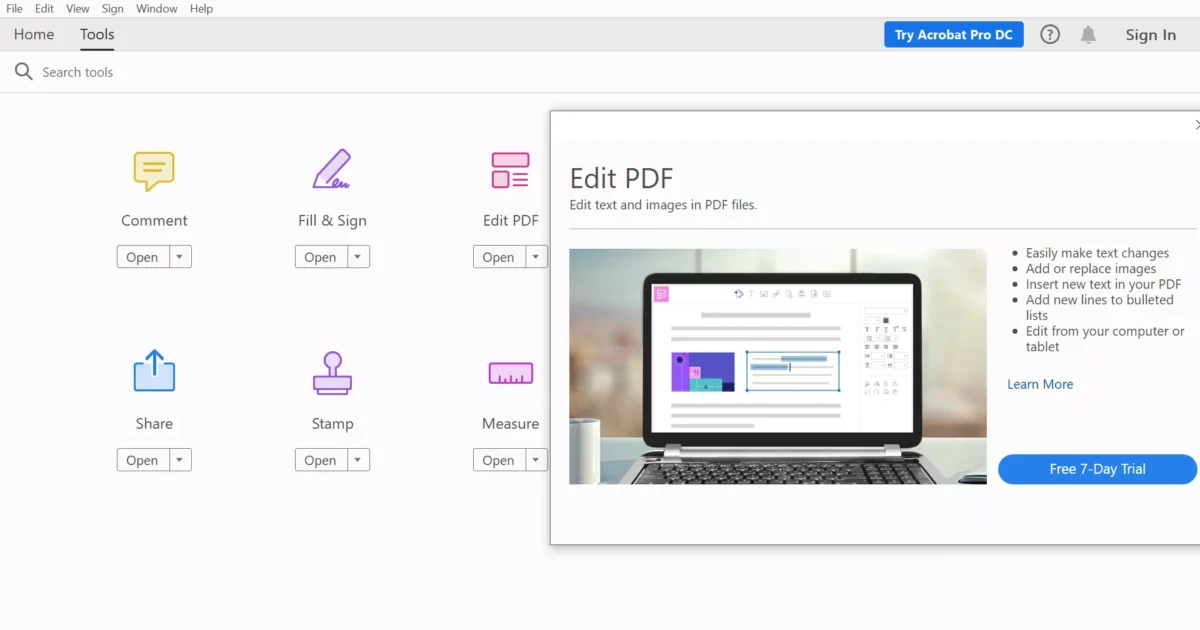
Adobe Acrobat Online is a browser based PDF service that provides tools for working with PDF documents. It is a useful option for people who want to add text, comments, or annotations without installing a desktop application.
Depending on the available tool and account requirements, users can add text to documents, fill out forms, and make other basic changes.
One advantage of Adobe Acrobat Online is its familiar PDF interface. Users who already work with PDF files may find its editing environment straightforward.
However, not every editing feature is available for free. Some functions may require an Adobe account, a paid subscription, or access to a particular Acrobat tool.
Best for: Users who want a familiar PDF editing service for everyday document tasks.
2. Smallpdf
Smallpdf is an online PDF platform that offers several document management tools. Its PDF editing features can help users add text boxes, comments, shapes, and other elements to existing files.
The editor is suitable for tasks such as adding a note to a report, inserting missing information, or placing text in a specific area of a document.
Smallpdf has a simple interface that works well for beginners. Users can upload a PDF, select the editing tools they need, and download the updated file.
Its free access may have usage limits, and some advanced features require a paid plan. Users should check the current restrictions before editing multiple documents.
Best for: Beginners who need to add text or annotations to PDF files occasionally.
3. iLovePDF
iLovePDF is an online platform designed to simplify common PDF tasks. It offers tools for editing, converting, merging, splitting, and organizing PDF documents.
Its PDF editor can be useful when you need to insert text into an existing file. You can place text in the appropriate area and adjust its appearance to suit the document.
The platform is particularly useful for people who handle different types of PDF files and want several document tools in one place.
For example, you might add text to a PDF and then use another available tool to merge it with a separate document.
Some features may have restrictions under the free plan, so check the available options before starting.
Best for: Users who need basic PDF text editing alongside other PDF management tools.
4. PDFescape
PDFescape is an online PDF editor that supports tasks such as adding text, filling out forms, inserting annotations, and adding other elements to documents.
It is a practical choice when you need to complete an existing PDF form or insert information into a document without recreating the entire file.
Users can add text to selected areas and use available formatting options to make the content readable.
PDFescape also provides features for working with form fields, which can be helpful for applications, questionnaires, and administrative documents.
However, its online editing capabilities may have file size or feature limitations. More advanced functions may require a desktop version or a paid plan.
Best for: Filling out PDF forms and adding text to documents with predefined spaces.
5. Sejda PDF Editor
Sejda PDF Editor provides online tools for editing PDF documents, including adding text, filling out forms, and inserting signatures or annotations.
One useful feature is its ability to work with text in different parts of an existing document. This can help when you need to insert information into a particular location rather than add a general note.
The interface is relatively simple, making it suitable for people who do not have experience with professional PDF software.
Sejda offers free access with certain restrictions. These may include limits on the number of tasks, file size, or document length, depending on the tool.
If you only need to make occasional changes, the free option may be sufficient.
Best for: Users who need to add text to specific areas of a PDF document.
6. PDF Candy
PDF Candy is an online PDF service that offers a collection of tools for editing and managing documents.
Its available editing features can help users add text and other elements to PDF files. The platform also provides tools for converting files between PDF and other formats.
This combination is useful when you need to make simple changes to a PDF or prepare a document for further editing.
For example, you may add a short explanation to a PDF before converting or organizing the file for distribution.
The free version may include restrictions on usage or access to certain functions. Check the editor’s current capabilities to confirm that it supports the changes you want to make.
Best for: Users who want text editing and document conversion options in one platform.
7. DocHub
DocHub is an online document editing service that focuses on PDF forms, signatures, and document collaboration.
It can help users insert text into PDF documents, complete forms, and add signatures where required. These features are particularly useful for administrative and business tasks.
Read also: Best Sentence Rewriter for Academic Writing
DocHub may also be suitable when multiple people need to review or complete documents as part of a workflow.
Its document focused interface makes it a practical option for users who regularly handle forms and paperwork.
However, access to particular features may depend on the account type or subscription plan. Review the available free features before choosing it for regular use.
Best for: Completing forms, adding text to paperwork, and preparing documents for signing.
8. PDF Bob
PDF Bob is an online PDF editor designed for straightforward document editing tasks. Its editing tools support activities such as adding text, highlighting content, drawing, and inserting annotations.
The tool is useful when you want to add information without changing the entire structure of a PDF.
For instance, students can use text annotations to add notes to study materials, while office workers can insert short explanations into reports.
Its editing approach is suitable for users who prefer a basic interface instead of a complicated document editing environment.
Before relying on the service for regular work, check whether its current version supports your preferred file size, formatting options, and download requirements.
Best for: Simple PDF annotations and adding text to existing documents.
9. PDF24 Tools
PDF24 Tools provides a collection of browser based utilities for working with PDF documents. These include options for editing, converting, merging, splitting, and managing files.
Its PDF editing tools can help users insert text and other elements into supported documents.
PDF24 is worth considering if you want to complete everyday PDF tasks without committing to a paid subscription. It also offers desktop software for users who prefer working with files on their computers.
The desktop option can be particularly useful when you want to reduce the need to upload documents to an online service.
Available features may differ between its online tools and desktop application, so choose the version that matches your requirements.
Best for: Users looking for free PDF utilities and an alternative to browser only editing.
10. Canva
Canva is a design platform that allows users to create documents, presentations, graphics, and other visual materials. Its PDF import and editing capabilities can be useful when you want to add text while improving the visual appearance of a document.
You can use text boxes to insert headings, labels, explanations, or other content into supported PDF designs.
Canva is especially useful when appearance matters. For example, you might need to add a heading to a PDF flyer or include additional information in a brochure.
However, Canva is not always the best choice for editing complex PDFs with extensive formatting. Importing a document may also change certain layout elements.
Some design assets and features require payment, although basic editing options are available for free.
Best for: Adding text to visually designed PDFs, flyers, brochures, and presentations.
How to Add Text to a PDF Online for Free
Most online PDF editors follow a similar process. Although the exact buttons may differ, the general steps are easy to understand.
Step 1: Choose a PDF editing tool.
Select an editor that supports adding text and offers the features you need under its free plan.
Step 2: Upload your PDF file.
Open the editor and select the option to upload a document. Choose the PDF from your device.
Before uploading a confidential document, review the service’s privacy and file handling practices.
Step 3: Select the text tool.
Look for an option labeled Add Text, Text, or Edit PDF. Select the tool to create a new text box.
Step 4: Enter your text.
Click the area where you want the text to appear and type your content. Keep the wording concise if you are adding information to a document with limited space.
Step 5: Adjust the formatting.
Change the font size, color, or alignment if the editor supports these options. Position the text carefully so that it does not cover existing information.
Step 6: Review and download the PDF.
Check the entire document for misplaced text, missing information, and formatting problems. Save or download the edited file as a PDF.
If the new text does not appear correctly, try a different font size or move the text box to a more suitable location.
Which Free PDF Text Editor Should You Choose?
The right choice depends on your main objective.
For general PDF editing, Adobe Acrobat Online, Smallpdf, and iLovePDF are useful starting points. For filling out forms, consider PDFescape or DocHub. Sejda PDF Editor and PDF Candy are worth exploring for everyday editing tasks, while PDF Bob can suit basic annotations.
PDF24 Tools is another option for users who want a range of PDF utilities. Canva is more suitable when you need to add text to a visually designed document.
Before choosing a tool, determine whether you need to add text over the page or edit the original text already present in the PDF. These are different tasks, and not every free editor supports both.
For simple additions, a text box is often enough. If you need to rewrite paragraphs, change existing sentences, or preserve complex formatting, look for an editor with direct text editing capabilities.
Frequently Asked Questions
1. Can I add text to a PDF online for free?
Yes. Several online tools offer free PDF text editing features. Options include Smallpdf, iLovePDF, PDFescape, Sejda PDF Editor, and PDF24 Tools. Some services impose usage limits or require an account for certain features.
2. Can I add text to a PDF without installing software?
Yes. Browser based PDF editors allow you to upload a document, insert text, and download the edited file without installing a desktop application.
3. Can I add text to a PDF on my phone?
Yes. Many online PDF editors work in mobile browsers. Open the editor on your phone, upload the PDF, add your text, and download the updated document. A larger screen may make precise positioning easier.
4. Can I edit existing text in a PDF?
Some PDF editors allow you to change existing text, while others only support adding new text boxes or annotations. Check the editor’s features before uploading your document.
5. Is it safe to upload PDF files to online editors?
Safety depends on the service and how it handles uploaded files. Review its privacy policy and file retention practices before uploading documents. For sensitive information, consider an offline PDF editor.
6. Will adding text change the original PDF layout?
It can, especially if you place text over existing content or use an editor that changes fonts and formatting. Review the document before downloading it to ensure that the new text appears correctly and the original layout remains readable.