10 Free TIFF to PDF Converters for Multiple Files
Converting TIFF images to PDF files makes it easier to share, store, print, and organize scanned documents. However, converting several TIFF images individually can take time. A free TIFF to PDF converter that supports multiple files allows you to combine images into one PDF document or convert them into separate PDF files.
Several online tools offer TIFF to PDF conversion without requiring you to install additional software. Some support batch conversion, while others let you arrange images, adjust page settings, or combine multiple images into a single document.
The best tool depends on the number of files you need to convert, the quality you want to preserve, and whether you prefer a combined PDF or separate documents.
In this guide, we explore 10 free TIFF to PDF converters for multiple files, explain their main features, and help you choose the right option for your needs.
What Is a TIFF to PDF Converter?
A TIFF to PDF converter is a tool that changes Tagged Image File Format images into Portable Document Format files.
TIFF is commonly used for scanned documents, photographs, technical images, and archival records. It can store high quality images and support multiple pages within a single file.
PDF is a widely supported document format that preserves page layouts and makes documents easier to view, print, and share across different devices.
Converting TIFF files to PDF is useful when you need to submit scanned documents, organize business records, create digital archives, or send multiple images as one document.
A converter that supports multiple files can process several images in one session. Depending on the tool, it may combine them into one PDF or create a separate PDF for each image.
10 Free TIFF to PDF Converters for Multiple Files
1. Adobe Acrobat Online
Adobe Acrobat Online provides browser based PDF tools for working with digital documents. Its conversion features can help users prepare and manage files without installing the full desktop application.
Adobe is a suitable option for people who want to convert image documents and work with PDFs using a familiar interface.
However, you should check the available conversion options before uploading a large collection of TIFF files. Support for TIFF input and batch processing can depend on the specific tool and service limitations.
Key features
• Browser based document tools
• PDF creation and management features
• Options for organizing and handling PDF documents
• Familiar interface for existing Adobe users
Best for: Users who want to manage PDF documents and check whether the available Adobe tools support their conversion requirements.
2. iLovePDF
iLovePDF is an online platform that provides several tools for creating, converting, compressing, and organizing PDF documents.
Its simple interface makes it useful for people who regularly work with digital documents. Users can upload files, select an available operation, and download the resulting documents.
However, TIFF conversion support should be verified before choosing this service for batch processing. Not every image format is supported by every conversion tool, and free usage may have restrictions.
If your TIFF files are not accepted directly, you may need a converter specifically designed for TIFF images.
Key features
• Online PDF conversion and management tools
• Simple file upload process
• PDF merging and compression options
• Browser based access
Best for: Users who need general PDF management features alongside image conversion options.
3. Smallpdf
Smallpdf is an online document platform that offers tools for converting, editing, compressing, and managing PDFs.
It is designed for users who prefer a straightforward interface rather than complicated desktop software. The platform can be useful when preparing documents for sharing, printing, or storage.
Before uploading multiple TIFF images, confirm that the selected tool accepts TIFF files. Smallpdf’s supported input formats and available free operations may differ by tool.
If direct TIFF conversion is unavailable, another option on this list may be more suitable.
Key features
• Online document processing
• PDF compression and organization
• Simple browser based workflow
• Tools for common PDF tasks
Best for: Users who want a straightforward online PDF workspace and need to confirm TIFF compatibility before converting files.
4. Zamzar
Zamzar is an online file conversion service that supports a wide range of file formats.
It is useful for users who need to change files from one format to another without installing dedicated software. The service supports various image and document conversion workflows.
Before using Zamzar for multiple TIFF files, check its current TIFF to PDF conversion options and free usage limits. Batch processing availability and the number of files you can convert may depend on your selected workflow and account type.
Key features
• Support for multiple file formats
• Browser based conversion process
• No dedicated desktop installation required for online conversion
• Useful for occasional format changes
Best for: Users who need a general file conversion service for different image and document formats.
5. Convertio
Convertio is an online file converter that supports many formats, including common image and document types.
The service is designed to make file conversion accessible through a web browser. Depending on the selected conversion workflow, users may upload files from their devices or supported cloud storage services.
For TIFF to PDF conversion, check that the current tool accepts TIFF as an input format and allows the number of files you need to process.
Free usage may be limited by file size, daily conversion allowances, or other restrictions.
Key features
• Online conversion for numerous file formats
• Browser based file uploads
• Support for different file sources in available workflows
• Simple conversion interface
Best for: Users who frequently convert different file formats and want an online tool with broad format support.
6. Online2PDF
Online2PDF is an online document processing service that provides conversion and PDF management features.
It is particularly useful for users who need to work with multiple documents in one session. Depending on the supported input format, its tools may help combine files or create organized PDF documents.
Before selecting Online2PDF for TIFF images, verify direct TIFF input support. A service that accepts multiple documents does not necessarily support every image format.
If the tool accepts your files, review the available settings to determine whether you can combine the images into one PDF or process them separately.
Key features
• Online document conversion
• Options for working with multiple files
• PDF creation and management tools
Read also: How to Increase Resolution of an Image Online Free
• Browser based access
Best for: Users who want to process multiple documents and need to confirm TIFF compatibility.
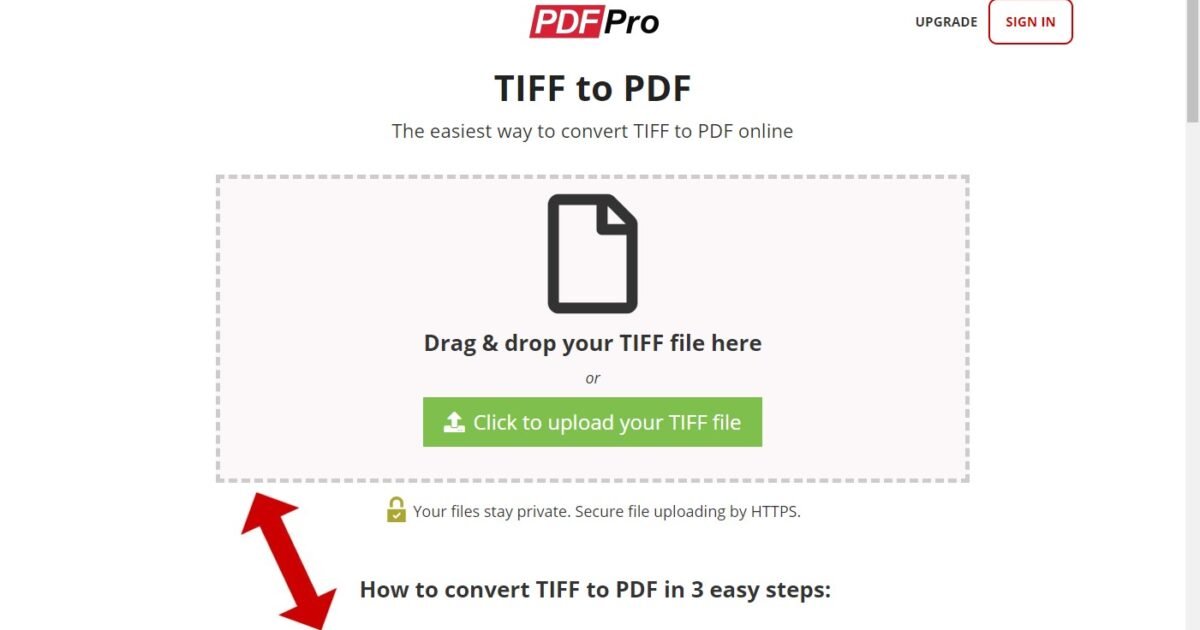
7. TIFF to PDF
A dedicated TIFF to PDF converter is often a practical choice when your main task is converting scanned images.
Tools designed specifically for TIFF files may offer workflows for uploading multiple images, combining pages, or converting TIFF documents into PDF format.
Some converters also support multipage TIFF files. This matters because a single TIFF file can contain several pages, and you may want to preserve all of them in the resulting PDF.
Before using a dedicated online converter, check whether it supports batch uploads, multipage TIFF files, and the output options you need.
Key features
• TIFF focused conversion workflow
• Potential support for multiple image uploads
• PDF output for scanned documents
• Convenient access through a browser, depending on the service
Best for: Users whose primary requirement is converting TIFF images rather than managing many different file formats.
8. FreeConvert
FreeConvert is an online conversion platform that supports various file types and provides tools for changing files into different formats.
Its conversion workflow is designed for users who want to process files through a browser. Available settings and upload options depend on the selected conversion tool.
If you plan to convert multiple TIFF files, verify that the current service supports TIFF to PDF conversion directly. Also check the maximum upload size and the number of files permitted in a single session.
These limits are important when working with high resolution scans or large document collections.
Key features
• Online file conversion
• Support for multiple formats
• Browser based workflow
• File processing options that vary by conversion type
Best for: Users who want an online conversion service and need to check its TIFF support and batch processing limits.
9. Aconvert
Aconvert is an online conversion service that handles different types of files, including images and documents.
It provides a browser based way to convert supported files without requiring a dedicated desktop application. This can be useful for occasional conversions or users working across different devices.
When using Aconvert for TIFF images, check the available image conversion options and confirm whether you can process multiple files in one session.
You should also verify how the service handles multipage TIFF files, particularly when converting scanned documents.
Key features
• Online image and document conversion
• Support for various file formats
• Browser based access
• Useful for occasional file conversion tasks
Best for: Users who need a general online converter and want to check its available TIFF conversion options.
10. CloudConvert
CloudConvert is an online file conversion platform that supports a broad range of formats.
It provides conversion options for users who need to work with different file types. Depending on the selected tool, available settings may include output adjustments and file handling options.
For TIFF to PDF conversion, confirm that the service supports your input files and desired workflow. If you need to convert an entire folder of images, check whether the current interface allows batch processing and whether the free usage allowance is sufficient.
Key features
• Support for many file formats
• Online conversion workflow
• Options that vary by file type
• Suitable for different document processing needs
Best for: Users who need a flexible conversion platform for several types of files.
How to Choose the Best Free TIFF to PDF Converter
Choosing the right converter depends on your files and the result you want.
Check Batch Conversion Support
If you have dozens or hundreds of TIFF images, choose a tool that explicitly supports multiple file uploads.
Some services accept several files but process them individually. Others allow you to combine images into one PDF. Confirm which option is available before uploading your documents.
Look for Multipage TIFF Support
A multipage TIFF file contains several images or pages within a single file.
If you are converting scanned books, contracts, or office records, choose a converter that preserves every page. Otherwise, some pages may not appear in the resulting PDF.
Consider File Size Limits
High resolution TIFF images can be large, especially when they contain detailed scans or multiple pages.
Free online converters may restrict upload sizes or the number of conversions you can perform. Check these limits before processing a large collection of files.
Preserve Image Quality
A good converter should retain readable text, clear images, and the correct page orientation.
If your TIFF files contain important documents, inspect the resulting PDF before deleting or archiving the original images.
Protect Sensitive Documents
Scanned identification documents, financial records, and confidential business files require extra care.
Online converters may process uploaded files on remote servers. Review the service’s privacy and file retention policies before uploading sensitive information.
For confidential records, an offline conversion tool may be a safer option.
How to Convert Multiple TIFF Files to PDF
The exact steps depend on the converter, but the general process is similar.
First, select a converter that supports TIFF files and multiple uploads. Open its conversion tool in your browser.
Next, upload the TIFF images you want to convert. If the service supports combining files, arrange the images in the correct order.
Choose PDF as the output format and adjust any available settings, such as page orientation or page size.
Start the conversion and wait for the files to finish processing. Download the resulting PDF or PDFs to your device.
Finally, open the output files and check that every page appears correctly. Confirm that the images remain readable and that the page order matches your requirements.
Frequently Asked Questions
1. Can I convert multiple TIFF files to PDF for free?
Yes. Some online converters offer free TIFF to PDF conversion. However, batch processing, file size limits, and daily usage allowances vary by service.
2. Can I combine multiple TIFF images into one PDF?
Yes. Use a converter that supports merging or combining multiple images into a single PDF. Arrange the images in the required order before starting the conversion.
3. Can I convert a multipage TIFF file to PDF?
Yes, provided the converter supports multipage TIFF files. Check that the tool preserves all pages instead of converting only the first image.
4. Does converting TIFF to PDF reduce image quality?
It can, depending on the converter and its settings. Some tools preserve image quality well, while others may compress images. Review the output before discarding your original files.
5. Do I need to install software to convert TIFF to PDF?
No. Online converters let you process supported files through a web browser. However, desktop software may be more suitable for large collections or sensitive documents.
6. Which TIFF to PDF converter is best for multiple files?
The best option is a tool that supports direct TIFF uploads, batch conversion, multipage TIFF files, and the PDF output you need. Always check its current features and free usage limits before processing a large collection.