List of Free JSON Formatter and Validator Online Tools
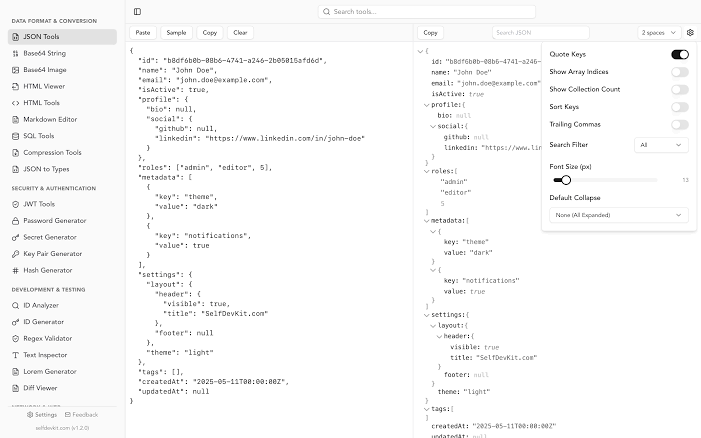
JSON is a widely used data format for storing, sharing, and transferring information between applications. Developers use JSON in web development, API testing, database operations, and software integration. However, JSON data can become difficult to read when it contains long lines, nested objects, or large arrays. Small syntax errors can also prevent an application from processing the data correctly.
Free online JSON formatter and validator tools help solve these problems. A JSON formatter organizes raw JSON data into a readable structure, while a JSON validator checks whether the data follows the correct JSON syntax. Many online tools offer both features, making them useful for beginners, developers, testers, and data analysts.
In this article, you will find a list of free JSON formatter and validator online tools, their main features, and guidance on choosing the right tool for your needs.
What Is a JSON Formatter and Validator?
A JSON formatter is an online tool that improves the readability of JSON data. It adds consistent indentation, line breaks, and spacing to organize objects, arrays, and values. This process is also known as pretty printing.
For example, formatted JSON is easier to inspect than JSON written on a single line. Developers can quickly identify property names, values, nested objects, and arrays without manually adjusting the spacing.
A JSON validator performs a different but related task. It checks whether a JSON document follows the syntax rules defined by the JSON format. If the document contains an error, the validator may identify the problem and provide information that helps you correct it.
Some online tools combine formatting, validation, minification, and syntax highlighting in one interface.
List of Free Online JSON Formatter and Validator Tools
Several free online tools can format and validate JSON data directly in a web browser. The following options offer different features for working with JSON documents.
1. JSONLint
JSONLint is an online JSON validation tool that helps users identify syntax errors in JSON documents. It is useful when an API response, configuration file, or manually written JSON document fails to parse.
The tool checks whether the supplied data follows valid JSON syntax. Depending on the problem, it can help identify issues such as missing commas, incorrect quotation marks, and improperly structured objects.
JSONLint is a practical choice for beginners who want to check whether their JSON data is valid before using it in an application.
Key features include:
- JSON syntax validation
- Identification of common formatting mistakes
- Simple interface for checking JSON data
- Support for quick JSON troubleshooting
JSONLint is particularly useful when validation is the main requirement.
2. JSON Formatter
JSON Formatter is a category of online tools designed to organize JSON data into a readable structure. These tools usually allow users to paste raw JSON into an editor and format it with consistent indentation.
A JSON formatter can make complicated API responses easier to understand. It separates objects, arrays, and values across multiple lines, helping developers examine the data structure.
Many JSON formatter tools also include validation, syntax highlighting, and minification features.
Key features include:
- Automatic JSON formatting
- Improved readability through indentation
- Support for nested objects and arrays
- Syntax highlighting in many implementations
- Minification options in some tools
A JSON formatter is a good option when you need to inspect large JSON responses or clean up compact data.
3. JSON Editor Online
JSON Editor Online provides an interactive environment for viewing and editing JSON data. Depending on the available interface and version, users can work with JSON in a text editor or a structured tree view.
The tree view is helpful when working with deeply nested objects. Instead of reading every line of the document, users can expand or collapse sections to focus on specific values.
This type of tool is useful for developers who need to inspect, edit, and organize JSON documents rather than simply validate their syntax.
Key features include:
- Interactive JSON editing
- Structured views of JSON objects and arrays
- Support for navigating nested data
- Data editing and inspection
- Formatting and validation features, depending on the mode
Choose an interactive JSON editor when you need more control over the document structure.
4. Code Beautify JSON Viewer
Code Beautify offers online development utilities, including tools for formatting and viewing JSON data. Its JSON tools can help users convert compact JSON into a more readable layout.
A JSON viewer is especially useful when an API returns a large response containing multiple objects and nested arrays. Formatting makes it easier to inspect individual fields and understand how the information is organized.
Some available features may also support validation, minification, and related data conversion tasks.
Key features include:
- JSON formatting and beautification
- Readable presentation of structured data
- JSON viewing and inspection
- Minification options
- Additional data processing utilities
This option is suitable for users who want a straightforward way to clean up and examine JSON data in a browser.
5. JSON Formatter and Validator by FreeFormatter
FreeFormatter provides online formatting and validation utilities for developers. Its JSON tools help organize JSON documents and check their syntax.
A formatter is useful when JSON data comes from a log file, an API response, or a configuration document. Instead of manually adding line breaks and spaces, users can apply automatic formatting.
Validation can help identify syntax problems before the data is passed to a program or service.
Key features include:
- JSON formatting
- Syntax validation
- Improved readability
- Browser based data processing
- A simple workflow for checking JSON documents
FreeFormatter is worth considering when you need a basic utility for preparing JSON data for review or troubleshooting.
6. JSON Hero
JSON Hero is designed to make JSON data easier to explore and understand. Rather than focusing only on text formatting, it provides a more visual way to inspect structured data.
This approach can be helpful when working with complex API responses, large objects, or unfamiliar JSON documents. A visual interface can make individual properties and their relationships easier to understand.
Key features include:
- Visual JSON inspection
- Navigation through structured data
- Easier exploration of nested objects
- A more accessible interface for examining JSON
JSON Hero is useful for users who want to understand the structure of a JSON document without relying entirely on a plain text editor.
7. JSON Crack
JSON Crack provides tools for visualizing structured data, including JSON. It can represent JSON objects and their relationships in a graphical format.
This can be helpful when a document contains multiple levels of nested objects. A graphical view may make the overall structure easier to understand than a long text document.
However, visualization and syntax validation serve different purposes. Users should confirm that a tool provides the specific validation features they need rather than assuming every visualizer performs a complete syntax check.
Key features include:
- Graphical JSON visualization
- Exploration of nested structures
- Visual representation of data relationships
- Support for understanding complex documents
JSON Crack is a useful choice when understanding the structure of JSON data is more important than simply changing its indentation.
8. Browser Based JSON Formatter Extensions
Some browser extensions provide JSON formatting and viewing features when users open JSON documents directly in a browser.
Read also: How to Install Office Deployment Tool for Free
These extensions can automatically organize JSON responses into readable sections. Depending on the extension, users may also be able to expand and collapse objects, search for values, or inspect arrays.
Browser extensions can be convenient for developers who regularly work with JSON API responses.
Key features include:
- Automatic formatting of JSON documents
- Easier browsing of API responses
- Navigation through nested objects
- Search and viewing features in some extensions
Before installing an extension, review its permissions and privacy practices. Some extensions may request access to website content, which is important to consider when working with sensitive information.
Comparison of Free JSON Formatter and Validator Tools
The best tool depends on whether you want to validate syntax, improve readability, edit data, or visualize a complex structure.
| Tool | Main purpose | Best suited for |
|---|---|---|
| JSONLint | Syntax validation | Finding JSON errors |
| JSON Formatter | Formatting and readability | Cleaning up raw JSON |
| JSON Editor Online | Editing and inspection | Working with structured data |
| Code Beautify JSON Viewer | Formatting and viewing | Examining API responses |
| FreeFormatter | Formatting and validation | Basic JSON checks |
| JSON Hero | Visual inspection | Exploring structured documents |
| JSON Crack | Data visualization | Understanding nested relationships |
| Browser JSON extensions | Viewing and formatting | Inspecting JSON in a browser |
Features vary between tools and versions. Some services provide several functions in one place, while others focus on a specific task. Check the available features before choosing a tool for regular use.
How to Format and Validate JSON Online
Using an online JSON formatter and validator is usually straightforward. You do not need to install a separate application for basic formatting and validation.
Follow these steps to check your JSON data.
Step 1: Copy your JSON data
Copy the JSON document from your application, API response, configuration file, or text editor.
Step 2: Open an online JSON tool
Choose a formatter or validator that supports the function you need. If you want to format and validate the same document, select a tool that offers both features.
Step 3: Paste the JSON data
Insert the copied content into the tool’s input area. Some tools also allow you to upload a file.
Step 4: Validate the JSON
Run the validation function if it is available. If the document contains a syntax error, review the message provided by the tool.
Step 5: Format the JSON
Use the formatting or beautification option to organize the document with consistent indentation and line breaks.
Step 6: Review and copy the result
Check the formatted output and copy it into your editor or application. Formatting improves readability, but it does not automatically guarantee that the data has the correct meaning or matches the requirements of your application.
Common JSON Errors These Tools Can Help Identify
JSON formatters and validators can help detect several common syntax mistakes.
Missing commas
JSON uses commas to separate properties within objects and elements within arrays. A missing comma between two properties can make a document invalid.
Incorrect quotation marks
JSON requires double quotation marks around property names and string values. Single quotation marks are not valid substitutes for double quotation marks in standard JSON syntax.
Trailing commas
A comma after the final property of an object or the final element of an array is not allowed in standard JSON.
Missing brackets or braces
Objects use curly braces, while arrays use square brackets. Missing or incorrectly placed brackets can prevent the document from being parsed.
Invalid values
JSON supports strings, numbers, objects, arrays, Boolean values, and null. Values such as undefined and NaN are not valid JSON values.
A validator can help locate these syntax problems. However, some errors involve the meaning of the data rather than its syntax. For example, a document may be valid JSON but still contain an incorrect customer ID or an unexpected date.
How to Choose the Best Free JSON Formatter and Validator
When selecting a free online JSON tool, consider the type of work you perform.
If you mainly need to find syntax errors, choose a validator that provides clear error messages. If you regularly inspect API responses, look for a formatter with syntax highlighting and support for nested objects.
An interactive editor may be more useful when you need to change individual values. A visualizer may be better when you want to understand complex data relationships.
Privacy is another important consideration. Online tools may process submitted data on remote servers, depending on their design. Avoid pasting passwords, access tokens, private customer information, or other sensitive data into an online service unless you have confirmed that its handling practices meet your requirements.
For confidential information, consider using a trusted local editor or a formatter that processes data entirely within your browser.
Finally, check whether the features you need are available without payment. Some tools provide free core functions but offer additional features through paid plans.
Conclusion
Free online JSON formatter and validator tools make it easier to read, inspect, and troubleshoot JSON data. Options such as JSONLint, JSON Editor Online, Code Beautify, FreeFormatter, JSON Hero, and JSON Crack serve different purposes, from basic syntax checking to interactive editing and visual exploration.
The right choice depends on your workflow. Use a validator to identify syntax errors, a formatter to improve readability, an editor to modify structured data, or a visualizer to understand complex JSON documents.
By choosing a tool that matches your requirements, you can work with JSON more efficiently and reduce common formatting and syntax problems.
Frequently Asked Questions
1. What is the best free online JSON formatter?
The best option depends on your needs. JSONLint is useful for syntax validation, while interactive editors and formatting tools are better for editing and improving readability. Choose a tool that supports the features you use most often.
2. How can I validate JSON online for free?
Open a free online JSON validator, paste your JSON data into the input field, and run the validation function. If the document contains syntax errors, review the reported issues and correct them.
3. What is the difference between a JSON formatter and a JSON validator?
A JSON formatter organizes data with consistent spacing and indentation. A JSON validator checks whether the document follows valid JSON syntax. Some online tools provide both functions.
4. Can I format JSON without installing software?
Yes. Many online JSON formatting tools work directly in a web browser. You can paste your data, format it, and copy the result without installing a separate application.
5. Why is my JSON invalid even after formatting?
Formatting changes the document’s presentation but does not necessarily fix its syntax. Missing commas, incorrect quotation marks, trailing commas, and invalid values can still cause errors. Run a validator to identify these problems.
6. Is it safe to use an online JSON formatter?
It depends on how the tool processes and stores submitted data. Avoid entering sensitive information unless you understand the service’s privacy practices. For confidential JSON documents, use a trusted local tool or a solution that processes data entirely within your browser.