How to Compare Two PDF Files Online Free
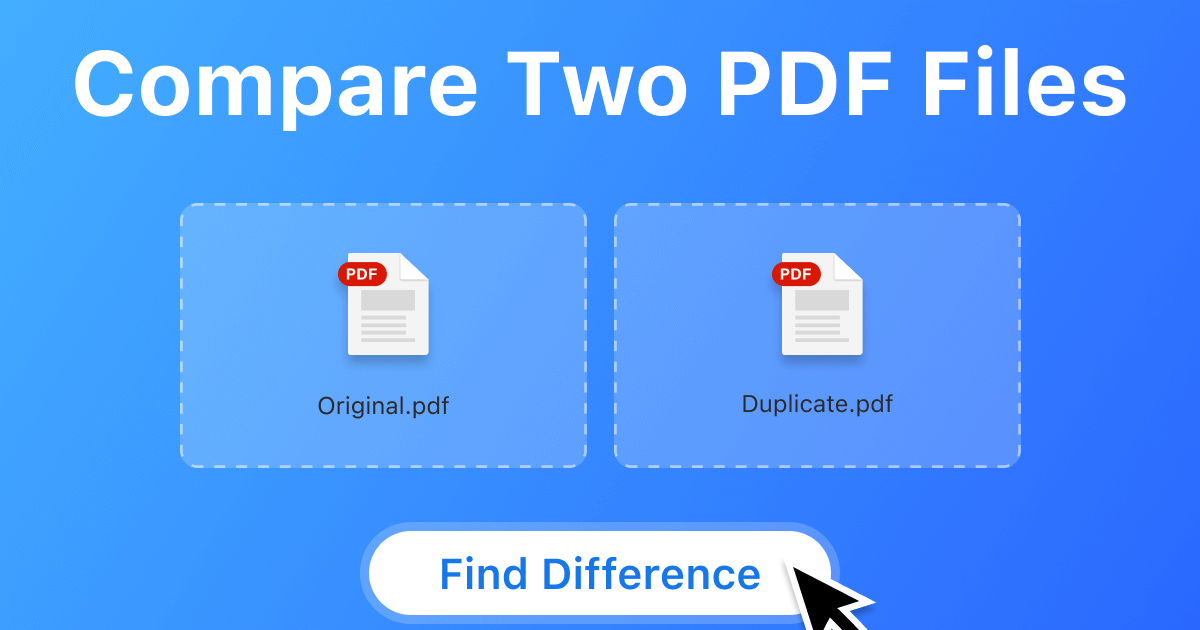
Comparing two PDF files online for free is a simple way to identify changes between documents without reading both files from beginning to end. Whether you need to review a revised report, check a contract, compare assignments, or verify updates in a business document, an online PDF comparison tool can help you find differences quickly.
Most online PDF comparison tools allow you to upload two files and analyze their contents directly in your browser. Depending on the tool, you can identify added text, removed content, modified sentences, and changes in document layout. Some tools also highlight differences so you can review them more easily.
In this guide, you will learn how to compare two PDF files online for free, which features to look for, how to understand the results, and what to consider before uploading your documents.
What Does It Mean to Compare Two PDF Files?
Comparing two PDF files means checking their contents to identify differences between them. These differences may include changes to text, numbers, paragraphs, tables, images, page order, or formatting.
For example, suppose you have an original project report and a revised version. Instead of opening both files separately and checking every page manually, you can use a PDF comparison tool to identify what has changed.
A PDF comparison tool typically examines the content of both documents and presents the differences in a format that makes them easier to review.
There are two common types of PDF comparison.
Text comparison: This method focuses on changes in words, sentences, numbers, and paragraphs. It is useful for reviewing contracts, reports, academic papers, and other text based documents.
Visual comparison: This method checks how the pages look and identifies visible changes in layout, images, spacing, fonts, and other design elements. It is useful for comparing forms, brochures, presentations, and documents with complex formatting.
Some tools support both methods, while others focus mainly on text differences.
How to Compare Two PDF Files Online Free
You can compare two PDF files online without installing desktop software. The exact steps depend on the tool you choose, but most online PDF comparison services follow a similar process.
Step 1: Choose a Free PDF Comparison Tool
Start by choosing an online tool that supports PDF comparison. Look for a service that allows you to upload two PDF files and displays their differences clearly.
Before choosing a tool, check whether it offers free comparisons, supports your file sizes, and works with your documents’ content.
Some tools provide basic comparisons at no cost but limit the number of files, pages, or comparisons you can process. Others may require registration or payment for advanced features.
Choose a tool that meets your needs without requiring unnecessary steps.
Step 2: Upload Both PDF Files
Open the comparison tool and locate the file upload options.
Select the original PDF file and then select the revised PDF file. Some tools label these files as the original and modified versions, while others use terms such as the first file and second file.
Make sure you select the correct documents. Uploading the files in the wrong order may make the results harder to understand, especially if the tool identifies which content was added or removed.
For example, if you want to check changes made to a report, upload the earlier report as the original file and the updated report as the revised file.
Step 3: Start the Comparison
After uploading both documents, select the option to compare files.
The tool will analyze the PDFs and look for differences. Processing time depends on factors such as document length, file size, page complexity, and the service being used.
Some tools extract text from both files before comparing it. Others also examine page images or document layout.
If the PDF contains scanned pages, the tool may need optical character recognition, also known as OCR, to recognize the text. Not every free comparison tool supports this feature.
Step 4: Review the Differences
When the comparison finishes, the tool may display the results side by side or show a combined document with highlighted changes.
Depending on the tool, different colors or markers may indicate inserted text, deleted words, or modified sections.
Review each highlighted difference carefully. A small change in a date, amount, name, or contract clause can be important even if the rest of the document remains unchanged.
You should also check whether the tool identifies formatting changes or only text differences.
Step 5: Download or Save the Results
Some online PDF comparison tools let you download a comparison report or a marked copy of the document.
If this option is available, save the results so you can review them later or share them with authorized colleagues.
If the tool does not provide a downloadable report, you may need to review the highlighted differences directly in your browser.
Before finishing, confirm that you have checked all relevant pages and that the comparison includes the information you need.
What Are the Benefits of Comparing PDF Files Online?
Online PDF comparison tools can make document review easier, especially when the files contain many pages or repeated information.
Find Changes Faster
Manually checking two long documents can take considerable time. A comparison tool can highlight differences and help you focus on the sections that have changed.
This is particularly useful when reviewing updated reports, policies, proposals, or academic documents.
Reduce Manual Errors
Small changes can be difficult to notice when you read two similar documents separately. Automated comparison helps identify differences that might otherwise be overlooked.
However, automated results are not always perfect. You should still review important changes manually.
Avoid Installing Software
Many online tools work through a web browser, so you do not need to install a dedicated PDF application.
This can be useful when working on a shared computer or a device where you cannot install additional software.
Compare Documents From Different Devices
Browser based tools can often be used on computers and compatible mobile devices. This allows you to compare documents from different locations without relying on a particular computer.
The experience may vary depending on screen size, browser compatibility, and file upload limits.
How to Choose the Best Free Online PDF Comparison Tool
Not all PDF comparison tools offer the same features. Before uploading your documents, consider the following factors.
Free Usage Limits
Check whether the service allows you to compare files without payment. Some tools limit the number of comparisons, maximum file size, page count, or available features.
If you compare documents regularly, these limits may affect your choice.
Read also: Best New AI Tools 2026 Free: 10 Powerful AI Tools You Can Use for Free
Text and Layout Comparison
Consider the type of changes you need to identify.
If you only need to compare written content, a text comparison tool may be sufficient. If you need to check images, page arrangement, spacing, or other visual elements, choose a tool that supports visual comparison.
Scanned PDF Support
A scanned PDF may contain page images instead of selectable text. Some tools cannot compare this type of document accurately without OCR.
If your files come from scanners or photographed pages, check whether the tool can recognize text from images.
Clear Comparison Results
A useful comparison tool should make changes easy to identify and understand.
Look for readable highlights, side by side viewing, page navigation, and an option to download the results when needed.
Privacy and File Security
Consider privacy before uploading documents to an online service.
PDF files may contain personal information, financial records, business data, or confidential agreements. Review the service’s privacy policy, file retention practices, and security information before uploading sensitive documents.
For confidential files, an offline comparison application may be a safer choice, depending on your organization’s security requirements.
Common Problems When Comparing PDF Files Online
Sometimes, an online comparison tool may not display every difference correctly. Understanding common problems can help you interpret the results.
The PDF Contains Scanned Pages
Scanned documents may not contain searchable text. A tool that compares text alone might return incomplete results or fail to identify changes.
To address this issue, use a tool that supports OCR or convert the scanned pages into searchable text before comparing them.
Always check the extracted text for recognition errors, especially when the document contains names, dates, or numbers.
The Documents Have Different Page Layouts
A document may have been reformatted between versions. For example, changing the font size or margins can move paragraphs to different pages.
Some tools may interpret these layout changes as multiple differences, even when the text remains the same.
If layout is important, use a comparison method that examines page appearance as well as text.
The Tool Reports Too Many Differences
Minor formatting changes can create many comparison results. Changes in spacing, line breaks, page numbering, or punctuation may also appear in the report.
Review the context of each difference to determine whether it affects the document’s meaning.
For legal, financial, or technical documents, pay particular attention to figures, dates, conditions, and other critical details.
One or Both Files Cannot Be Uploaded
An upload may fail because the file exceeds the tool’s size limit, uses unsupported features, or has become corrupted.
Check the file size and confirm that both PDFs open correctly on your device. If necessary, create a smaller copy or use a tool that supports larger documents.
Avoid using untrusted online services to repair files containing sensitive information.
Can You Compare Two PDF Files Without Uploading Them Online?
Yes. You can compare two PDF files using desktop software that processes documents locally on your computer.
Offline comparison can be useful when you work with confidential information or need to avoid sending files to an external service.
Depending on the software, you may be able to compare text, highlight changes, examine page layouts, or generate a comparison report.
The main difference is that online tools generally offer access through a browser, while offline tools require software installed on your device.
If privacy is your main concern, check how the software processes documents and whether it sends any information to external servers.
Best Practices for Accurate PDF Comparison
To get more reliable results, follow a few simple practices when comparing documents.
First, use the correct original and revised files. Clear file names can help prevent confusion when working with multiple versions.
Second, confirm that both documents contain the pages you expect. Missing pages can affect the comparison and lead to misleading results.
Third, use text comparison for written content and visual comparison when layout matters. For scanned documents, check whether OCR is available.
Finally, review important differences manually before accepting changes. Automated tools can identify many differences, but they may not understand the context or importance of each change.
These steps are particularly important when comparing contracts, invoices, research papers, financial statements, and official documents.
Frequently Asked Questions
1. How can I compare two PDF files online for free?
Choose an online PDF comparison tool, upload both files, and start the comparison. Review the highlighted differences and download the results if the service supports that option. Check any free usage limits before uploading your documents.
2. Can I compare two PDF files without downloading software?
Yes. Many online PDF comparison tools work directly in a web browser. You can upload two documents, review their differences, and sometimes download a comparison report without installing additional software.
3. Can I compare two PDF files with different page counts?
Yes. Many tools can compare PDFs with different page counts. However, the results may be more difficult to interpret if pages have been added, removed, or rearranged. Check the page alignment and review the affected sections carefully.
4. Can I compare scanned PDF documents?
Yes, provided the comparison tool supports scanned documents or optical character recognition. Without OCR, the tool may not recognize text contained in page images. Visual comparison may still be possible with some tools.
5. Is it safe to compare PDF files online?
It depends on the service and the information in your documents. Before uploading files, review the provider’s privacy policy, security measures, and file retention practices. For confidential documents, consider using an offline tool that processes files locally.
6. Can I compare PDF files and download the differences?
Some online tools allow you to download a comparison report or a PDF with highlighted changes. Other tools display differences only in the browser. Check the available export options before choosing a service.
Conclusion
Comparing two PDF files online for free is a practical way to identify changes without reviewing both documents manually. The process usually involves uploading the original and revised files, starting the comparison, and examining the highlighted differences.
Choose a tool that supports your document type, offers clear results, and meets your privacy requirements. For scanned documents, check for OCR support, and for documents with complex layouts, consider visual comparison features.
Most importantly, review significant changes manually to confirm their accuracy and meaning. This simple step helps you use PDF comparison tools more effectively for personal, academic, and professional document reviews.