How to Access Files on Google Drive on Phone: A Complete Guide for Android and iPhone
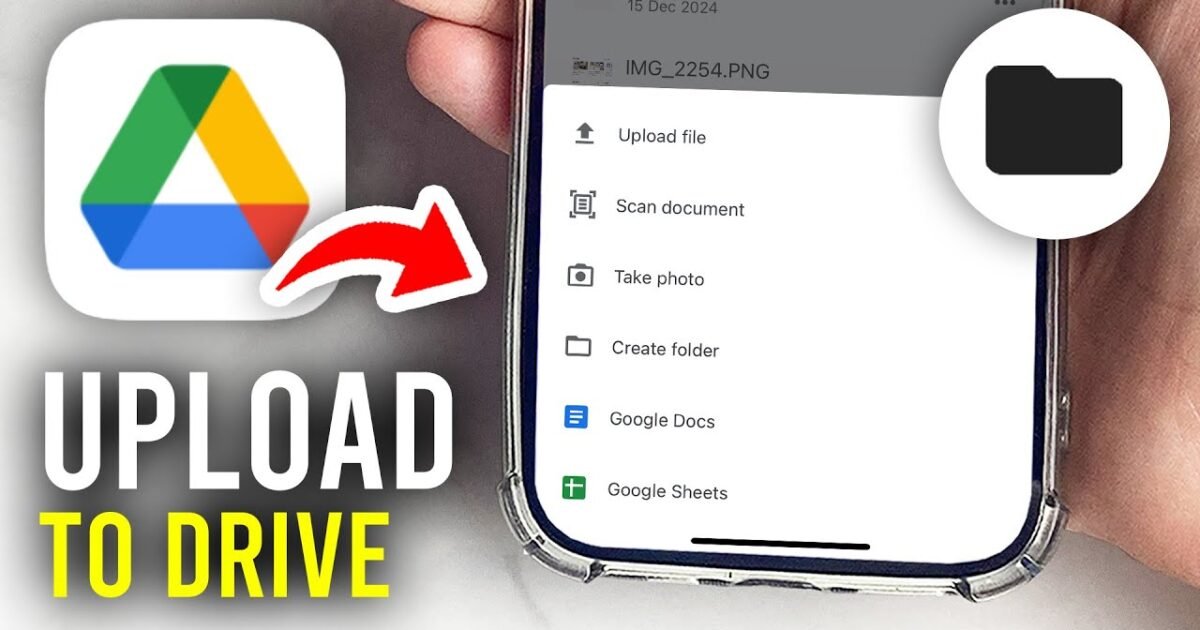
Google Drive is one of the most convenient ways to store, organize, and access digital files from anywhere. Whether you want to open a PDF document, view a photo, read a spreadsheet, access work documents, or share important files with friends, Google Drive allows you to do so directly from your smartphone.
However, many people still wonder how to access files on Google Drive on phone, especially when they cannot find a document, are using a new device, have multiple Google accounts, or want to open files without an internet connection.
The good news is that accessing your files does not require a computer or advanced technical knowledge. You can use the Google Drive mobile app on an Android phone or iPhone, or open Google Drive through your mobile web browser. Once you sign in to the correct Google Account, you can browse your folders, search for specific documents, open shared files, download items, and make selected files available offline.
In this comprehensive guide, you will learn how to access files on Google Drive on your phone step by step. We will also explain how to find missing files, open documents shared by other people, save files to your phone, access files without internet access, and troubleshoot common Google Drive problems.
Whether you are a student, professional, business owner, or casual smartphone user, this guide will help you manage your Google Drive files more efficiently.
What Is Google Drive, and How Does It Work on a Phone?
Google Drive is a cloud storage service that allows users to store files online and access them using compatible devices. Instead of keeping every document exclusively in your phone’s internal storage, you can upload files to Google Drive and retrieve them whenever you need them.
Your files are associated with your Google Account. This means that when you sign in to the same account on another phone, tablet, or computer, you can access the files you have permission to view.
Google Drive supports many file types, including:
- PDF documents and electronic books.
- Microsoft Word documents and other text files.
- Excel spreadsheets and CSV files.
- PowerPoint presentations.
- Photos and images.
- Videos and audio files.
- Google Docs, Google Sheets, and Google Slides files.
- ZIP archives and other supported file formats.
The way a file opens depends on its format, the applications installed on your phone, and the permissions associated with that file.
For example, a Google Docs document may open in the Google Drive or Google Docs app, while an Excel spreadsheet might open in Google Sheets or another compatible application.
One major advantage of Google Drive is that you do not necessarily need to download a file before viewing it. Many supported files can be opened directly from the cloud, helping you save space on your smartphone.
How to Access Files on Google Drive on Phone Using the Mobile App
The easiest way to access Google Drive files is through the official Google Drive mobile application. The steps are similar on most Android phones and iPhones, although some menu names may vary depending on your device and app version.
Step 1: Install the Google Drive App
First, check whether Google Drive is already installed on your smartphone.
On an Android phone, open the Google Play Store, search for Google Drive, and install the official application if necessary.
On an iPhone, open the Apple App Store, search for Google Drive, and install the official Google application.
If the app is already installed, check whether an update is available. Using an updated version can help resolve compatibility problems and ensure that you have access to the latest features.
Always verify that you are installing the genuine Google Drive application rather than an unrelated third-party app.
Step 2: Open Google Drive
After installation, tap the Google Drive icon on your phone’s home screen or in the app drawer.
If this is your first time opening the application, you may be asked to sign in to your Google Account.
If you are already signed in to a Google Account on your phone, the app may offer that account automatically.
Step 3: Sign In to Your Google Account
Enter the email address and password associated with the Google Account that contains your files.
If your phone has multiple Google Accounts, make sure you select the correct one.
This step is particularly important because Google Drive keeps files organized by account. A document stored in one account will not necessarily appear when you open another account.
If you use separate accounts for personal and professional activities, check which account you used when uploading or receiving the file.
Step 4: Browse Your Google Drive Files
Once you have signed in, you can browse your available files and folders.
Look for the Home and Files sections or similar navigation options in the app. Their exact arrangement can change as Google updates its interface.
The Home section can help you find suggested or recently used files, while the Files section allows you to browse your stored content.
Under My Drive, you can access files and folders that you have stored in your Google Drive.
Tap a folder to open it. Continue opening subfolders until you find the document, image, video, or other file you need.
Step 5: Tap the File You Want to Open
When you locate your file, tap its name or thumbnail.
Google Drive will attempt to open a preview of the file or launch a compatible application.
For example:
- Tap a PDF to open its preview.
- Tap a Google Docs document to read or edit it.
- Tap a spreadsheet to view it in a compatible spreadsheet application.
- Tap an image to view it.
- Tap a video to play it if the format is supported.
Some file types require an additional application. If Google Drive cannot open a file directly, follow the prompt to select or install a compatible app.
You have now accessed your Google Drive file on your phone. You can repeat these steps whenever you need another document.
How to Access Files on Google Drive on an Android Phone
Android users can access Google Drive through the official mobile app or a web browser. The mobile app is generally the more convenient option because it provides easy access to folders, downloads, sharing options, and offline files.
Follow these steps to access your files on Android.
Method 1: Using the Google Drive App
- Unlock your Android phone.
- Open the Google Drive app.
- Confirm that you are signed in to the correct Google Account.
- Tap Files or open My Drive.
- Browse your folders or use the search bar.
- Tap the file you want to access.
- Allow the document to load.
- If prompted, open the file in a compatible application.
If you are looking for a document that someone sent you, check the Shared section rather than searching only in My Drive.
Remember that files shared with you do not automatically belong to your account. They may appear in a separate section of Google Drive.
Method 2: Using a Mobile Browser on Android
You can also access Google Drive without installing the mobile app.
- Open Chrome or another supported web browser.
- Visit https://drive.google.com.
- Tap Sign in if you are not already signed in.
- Enter your Google Account details.
- Open My Drive or the relevant file section.
- Browse your files and select the document you need.
If the mobile website does not display the file correctly, try opening it in the Google Drive app.
Browser-based access is particularly useful when you are using a temporary device, cannot install applications, or simply prefer not to use the app.
However, certain features and file-handling options may work differently in a browser than in the mobile application.
How to Access Files on Google Drive on an iPhone
iPhone users can access Google Drive through the official Google Drive app, Safari, or another supported browser.
Although the appearance of the interface differs slightly from Android, the basic process is almost identical.
Method 1: Access Google Drive Through the iPhone App
Follow these instructions:
- Open the App Store on your iPhone.
- Search for Google Drive.
- Install the official app if you have not already done so.
- Launch Google Drive.
- Sign in to the Google Account containing your files.
- Browse the Home, Files, or My Drive sections.
- Open the folder where your document is stored.
- Tap the file to view it.
If the file is a Google Docs, Sheets, or Slides document, you may be able to open it using the corresponding Google application.
For certain file types, you can use the iPhone’s built-in preview features or another compatible application.
Method 2: Access Google Drive Through Safari
If you do not want to install the application, you can use Safari.
- Open Safari on your iPhone.
- Visit https://drive.google.com.
- Sign in to your Google Account.
- Locate the document you need.
- Tap the file to open it.
If you encounter an issue with the mobile website, try refreshing the page, checking your internet connection, or opening the document in the official Google Drive app.
Can You Access Google Drive Files Through the iPhone Files App?
Yes. You can integrate supported cloud storage services, including Google Drive, with Apple’s Files app.
First, install and sign in to the Google Drive app. Then:
- Open the Files app on your iPhone.
- Tap Browse.
- Open the More menu and select Edit, where available.
- Enable Google Drive under the available locations.
- Tap Done.
Once enabled, Google Drive may appear as a location in the Files app, allowing you to browse compatible cloud files from there.
The precise steps can vary by iOS version. If Google Drive does not appear, confirm that its app is installed, that you are signed in, and that the integration is enabled.
For more details, see Apple’s guide to using third-party cloud services in the Files app.
How to Find a Specific File on Google Drive Using Your Phone
Sometimes, opening Google Drive is easy, but finding the right document is difficult. This is especially common when your account contains hundreds of files and folders.
Fortunately, you do not have to browse every folder manually.
Use the Google Drive Search Bar
The search bar is one of the fastest ways to find files on Google Drive.
Follow these steps:
- Open Google Drive.
- Tap the Search in Drive field.
- Enter the file name or a word associated with the document.
- Review the search results.
- Tap the correct file to open it.
For example, if you are searching for a document named “Business Plan 2026,” try searching for “Business Plan” or simply “2026.”
You can also search using a distinctive word that appears in the document, provided that the file is searchable and you have permission to access it.
Search by File Type
If you cannot remember the exact file name, try narrowing the search by file type.
Depending on your app version, Google Drive may offer filters for file categories such as:
- Documents.
- Spreadsheets.
- Presentations.
- PDFs.
- Images.
- Videos.
For example, if you are searching for a PDF receipt, use a suitable search term and the available file-type filters to narrow the results.
Search by Person or Modification Date
Google Drive may also offer filters that help you find files by the person associated with them or the date they were last modified.
These filters can be useful when you know who shared a file with you or approximately when a document was updated.
For example, if a colleague recently sent you a report, search using a relevant keyword and check the available people or modification-date filters.
Check Recent Files
If you opened a document recently, check the Home section for suggested or recently accessed content.
This can save time when you remember viewing a file but cannot remember which folder contains it.
Keep in mind that suggested files are not necessarily a complete list of everything stored in your account.
How to Access Files Shared With You on Google Drive
Another common question is how to open files that someone else has shared through Google Drive.
When another person shares a document with your Google Account, you may receive a notification or email containing a link to the file.
You can also find eligible shared content within Google Drive.
Steps to Open Shared Files
- Open the Google Drive app.
- Confirm that you are signed in to the Google Account with which the file was shared.
- Navigate to Shared or Shared with me, depending on the interface.
- Browse the available files.
- Tap the document you want to open.
If the file does not appear, check the sharing notification or ask the owner to confirm which email address received access.
What If the File Says You Need Permission?
A message such as “You need access” usually means your current account does not have permission to open the file.
To resolve this issue:
- Check whether you are signed in to the correct Google Account.
- Open the original sharing link again.
- Select the option to request access if it is available.
- Wait for the owner to approve your request.
- Try opening the file again after access has been granted.
You cannot legitimately bypass the owner’s access restrictions. If a document is private, the owner or an authorized administrator must grant you permission.
Can You Open Shared Files Without Signing In?
Some files are configured so that anyone with the link can view them. Depending on the owner’s settings, these files may be accessible without signing in.
Other files are restricted to specific accounts or organizations.
If a link does not open, the owner may need to change the sharing settings or explicitly grant access to your account.
How to Download Google Drive Files to Your Phone
Opening a file directly from Google Drive does not always save a separate copy to your phone. If you want to keep a local copy, you may need to download it.
Downloading files is useful when you want to send a document through another application, store a personal copy, or access a supported file without repeatedly loading it from the cloud.
How to Download Files on Android
- Open the Google Drive app.
- Find the file you want to download.
- Tap the three-dot menu next to the file.
- Select Download, if available.
- Wait for the download to finish.
- Open your phone’s Downloads folder or another appropriate storage location to find the file.
The precise destination depends on the file type, your device, and the application handling the download.
If you cannot find the downloaded file, open your phone’s Files app and check the Downloads folder.
How to Download Files on an iPhone
On an iPhone, the download process may differ depending on the file type and the available actions.
- Open Google Drive.
- Locate the document.
- Tap the three-dot menu next to the file.
- Look for Download or an option such as Open in, Send a copy, or Save to Files.
- Select the appropriate option.
- If prompted, choose a destination in the Files app.
For compatible documents, selecting Save to Files allows you to keep a local copy in a location such as On My iPhone or iCloud Drive.
Not every file will present exactly the same menu options.
Why Is the Download Option Missing?
If you cannot download a file, several explanations are possible.
- The owner has restricted downloading, copying, or printing.
- The file type or current preview does not offer the expected download action.
- Your connection is unstable.
- Your phone has limited available storage.
- A device setting or app limitation is interfering with the process.
Try opening the file’s menu, checking your storage space, and confirming that you have permission to download the document.
For official instructions, visit Google Drive Help: Download a file.
How to Access Google Drive Files Without an Internet Connection
You do not always need Wi-Fi or mobile data to access Google Drive files. However, you must prepare the files in advance.
This is particularly helpful when travelling, working in areas with poor connectivity, attending classes, or preparing for a presentation in a location where internet access is unreliable.
How to Make Files Available Offline on Android
- Open the Google Drive app.
- Find the file you want to access.
- Tap the three-dot menu next to the file.
- Select Make available offline.
- Wait for the file to become available on your device.
To locate offline files, open the appropriate Google application and look for its Offline section or the offline files listed in Drive.
How to Make Files Available Offline on iPhone
On an iPhone, the process is similar.
- Open Google Drive.
- Locate the document.
- Tap the three-dot menu.
- Enable Available offline.
- Allow the app to prepare the file.
After the file has been made available offline, you can open it from the relevant app when your phone has no internet connection.
Can You Edit Google Drive Files Offline?
Google Docs, Google Sheets, and Google Slides support offline workflows when configured appropriately.
For example, you may be able to edit a document offline using the relevant Google application. Changes can synchronize when your phone reconnects to the internet.
However, not every file type supports offline editing, and a file being available for offline viewing does not automatically mean it can be edited.
For important work, enable offline access before disconnecting from the internet and confirm that the file opens successfully.
You can find more details in Google’s official offline access guide.
How to Open Different Types of Files on Google Drive
Google Drive supports a wide range of files, but the opening process depends on the format.
Opening PDF Files
To access a PDF:
- Open Google Drive.
- Search for the PDF or browse to its folder.
- Tap the file.
- Allow the preview to load.
If you want to keep the PDF on your phone, use the available download or save option.
Opening Word Documents
If you have a Microsoft Word document stored in Google Drive, tap it to open the preview or select a compatible application.
Depending on the file and the applications installed, you may be able to view or edit the document using Google Docs or Microsoft Word.
Opening Excel Spreadsheets
Excel files can often be opened using Google Sheets or Microsoft Excel.
Choose a compatible app when prompted. If you only need to view the spreadsheet, a preview may be sufficient.
Opening PowerPoint Presentations
PowerPoint files may open in a preview or in an application such as Google Slides or Microsoft PowerPoint.
If you need to present the slides without internet access, test the file beforehand and make sure any required local copy or offline access is available.
Opening Photos and Videos
To view an image or video, tap its thumbnail or file name in Google Drive.
If a video does not play, check your internet connection, the file format, and whether the upload has completed.
You may also download the file and open it using a compatible media player.
Opening ZIP Files
ZIP archives contain one or more compressed files. Google Drive may not provide a complete extraction workflow for every archive on a phone.
If the archive cannot be opened directly, download it and use a compatible file-management or archive-extraction application.
Always exercise caution when downloading files from unfamiliar sources.
How to Share Google Drive Files From Your Phone
Accessing a file is often only the first step. You may also want to send it to another person.
Google Drive allows you to share files with specific people or, where permitted, create links that other people can use.
Share a File With a Specific Person
- Open Google Drive.
- Find the file you want to share.
- Tap the three-dot menu.
- Select Share.
- Enter the recipient’s email address.
- Choose an appropriate access role.
- Send the invitation.
The available roles commonly include Viewer, Commenter, and Editor.
A Viewer can generally read the file, a Commenter can add comments where supported, and an Editor can make changes subject to the file’s permissions and organizational rules.
Share a File Using a Link
If you want to share a document through a messaging app, email, or another platform, you may be able to create a shareable link.
Open the sharing settings and check the General access section.
If permitted, you can choose Anyone with the link and select an appropriate role before copying the link.
Important: Anyone with the link may be able to access the file according to the selected permissions. Do not enable broad access for confidential documents, private photos, financial records, or sensitive business information.
For more details, see Google’s guide to sharing Drive files.
How to Switch Google Accounts on Your Phone
One of the most overlooked reasons people cannot find their files is that they are using the wrong Google Account.
For example, you might have one account for school, another for work, and a third for personal documents.
If a file is missing, switching accounts may solve the problem.
Steps to Switch Accounts
- Open the Google Drive app.
- Tap your profile picture or account icon.
- Review the accounts listed.
- Select the account that may contain the file.
- Browse My Drive, Shared, or the relevant folder.
If you have multiple accounts, repeat the process until you find the correct location.
Before downloading or sharing a sensitive document, double-check the active account to avoid accidentally using the wrong identity.
How to Access Google Drive Files From Another Phone
You can access your Google Drive files from another phone by signing in to the same Google Account.
This is convenient when you upgrade your smartphone, replace a damaged device, borrow a phone, or temporarily use another device.
Follow these steps:
- Install Google Drive on the new phone, if necessary.
- Open the application.
- Sign in to the Google Account containing your files.
- Browse your Drive folders.
- Open the documents you need.
Files stored in your Google Drive account should remain available across devices as long as you have the appropriate permissions and the account is accessible.
However, local files that were never uploaded to Drive will not automatically appear in the cloud.
For example, a photo saved only in your old phone’s internal storage will not become available on a new phone unless it was uploaded or otherwise transferred.
If you are using someone else’s phone, sign out afterward or remove your account from that device when appropriate. Avoid saving passwords on shared devices.
Why Can’t I Access Files on Google Drive on My Phone?
Sometimes, Google Drive opens successfully, but a particular file refuses to load. In other cases, the app itself may fail to open.
Understanding the likely cause can help you resolve the problem quickly.
1. Check Your Internet Connection
Most cloud files require an active internet connection unless they have been made available offline.
Try opening another website or application to confirm that your connection works.
If you are using mobile data, check that data access is enabled. If you are connected to Wi-Fi, try reconnecting or switching to another reliable network.
2. Make Sure You Are Using the Correct Google Account
A file may be missing because it belongs to a different account.
Tap your profile icon and switch to the account that owns the file or received the sharing invitation.
3. Update Google Drive
An outdated application can sometimes cause loading or compatibility problems.
Visit the Play Store or App Store, check for updates, and install any available Google Drive update.
Restart the app after updating it.
4. Restart Your Phone
Restarting your phone can resolve temporary software problems.
Close Google Drive, restart your device, and open the application again.
5. Check Available Storage
If your phone is nearly full, downloading or saving files may fail.
Open your phone’s storage settings and check how much space remains.
Delete unnecessary files or move content to an appropriate storage location if you need more space.
6. Check File Permissions
If a document belongs to another person, the owner may have removed your access or restricted the file.
Ask the owner to review the sharing settings and grant the correct permissions.
7. Try Opening the File in a Browser
If the app does not work correctly, visit https://drive.google.com using your mobile browser.
Alternatively, if the browser is causing problems, try the Google Drive app.
Switching between the two can help identify whether the problem is related to the app or the browser.
8. Restart or Refresh the Application
Close Google Drive completely and open it again.
On Android, if the problem continues, you can check the app settings and clear the application’s cache where that option is available. Avoid clearing application data unless you understand the consequences and know how to sign in again.
On an iPhone, you can close and reopen the application and check whether an update is available.
9. Check Whether the File Has Been Deleted
If you cannot find a file, check the search results, My Drive, Shared, and Trash where available.
If you own the file and deleted it recently, you may be able to restore it from Trash, subject to Google’s retention rules and any account or administrator restrictions.
If someone else owns the file, ask them whether it was deleted or moved.
10. Check Whether Google Drive Is Experiencing a Service Problem
Occasionally, the issue may be caused by a wider service disruption rather than your phone.
If several Google services fail at the same time, check Google’s official Workspace Status Dashboard for relevant incidents.
If the service is experiencing a problem, you may need to wait until it is resolved.
Is It Safe to Access Google Drive on a Phone?
Yes, Google Drive can be used safely on a phone when you follow sensible account-security practices.
Because your Drive account may contain private documents, work files, personal photographs, and other sensitive information, protecting your account is essential.
Use these security tips:
- Use a strong password: Choose a password that is difficult to guess and is not reused across multiple accounts.
- Enable two-step verification: Add another layer of protection to your Google Account.
- Lock your phone: Use a secure screen lock, PIN, or supported biometric authentication.
- Avoid suspicious links: Do not open unexpected files or links from unfamiliar people without checking their legitimacy.
- Review sharing permissions: Confirm who can access your documents.
- Be careful on shared devices: Do not leave your Google Account signed in on a phone you do not control.
- Download files selectively: Only download documents from sources you trust.
- Review account activity: Investigate unfamiliar sign-ins or unexpected changes to your files.
Remember that having a file stored in the cloud does not automatically make it public. Access depends on the account and sharing permissions associated with the file.
Tips for Managing Google Drive Files More Efficiently on Your Phone
Once you know how to access files on Google Drive on your phone, a few simple habits can make file management much easier.
Organize Files Into Folders
Create folders for different activities, such as school, work, receipts, personal documents, and projects.
A clear folder structure reduces the time spent searching for files.
Star Important Files
If you frequently use a particular document, spreadsheet, or folder, add it to Starred where that feature is available.
This gives you a convenient shortcut to important content.
Use Descriptive File Names
Names such as “Invoice October 2026” or “Marketing Report Q4” are easier to search for than generic names such as “Document 1.”
Consistent naming conventions can make a large Drive account much easier to manage.
Make Essential Files Available Offline
Before travelling or entering an area with unreliable internet access, prepare the documents you will need.
Test that the files open offline before depending on them for important work.
Keep Your Google Drive App Updated
Regular updates can provide improvements and address bugs that affect compatibility or performance.
Review Shared Files Periodically
Check files and folders that other people have shared with you. Remove shortcuts or reorganize content when necessary to keep your Drive workspace manageable.
Remember that removing a shared file from your view is not always the same as deleting the owner’s original file.
Frequently Asked Questions About Accessing Google Drive on a Phone
1. How do I access files on Google Drive on my phone?
Install or open the Google Drive app, sign in to the Google Account containing your files, and browse My Drive or the relevant folder. Tap a file to open it. You can also visit drive.google.com through a mobile browser.
2. Can I access Google Drive files without the app?
Yes. You can use a mobile web browser such as Chrome or Safari to visit https://drive.google.com and sign in. However, some features may work differently from the mobile application.
3. How do I find my files on Google Drive?
Open Google Drive and use the search bar to enter the file name or a relevant keyword. You can also browse My Drive, check recent files, use available search filters, or look in Shared for documents that other people sent you.
4. Why can’t I see my files in Google Drive?
The most common reasons include using the wrong Google Account, looking in the wrong folder, having a file moved or deleted, or not having permission to access it. Check your account, search for the file, and review the Shared section.
5. How do I open Google Drive files on an iPhone?
Install Google Drive from the App Store, sign in, locate your file, and tap it. You can also use Safari or integrate Google Drive with the Files app for compatible file-management tasks.
6. How do I open Google Drive files on Android?
Open the Google Drive application, sign in to the correct account, navigate to My Drive or Shared, and tap the file. If the document needs another application, follow the prompt to open it in a compatible app.
7. Can I access Google Drive files offline?
Yes, if you prepare supported files in advance by enabling the Available offline or Make available offline option. Offline availability depends on the file type and the features supported by the relevant application.
8. How do I download a file from Google Drive to my phone?
Open Google Drive, locate the file, tap its three-dot menu, and choose Download if available. On an iPhone, you may also need to select an option such as Save to Files, depending on the file type.
9. How do I access files someone shared with me?
Open Google Drive and look for Shared or Shared with me. You can also open the link in the sharing email or message. Make sure you are signed in to the account that received access.
10. Why does Google Drive say I need permission?
This message usually means the account you are using does not have the necessary access. Check whether you are signed in to the correct account and request permission from the file owner if needed.
11. Can I access Google Drive on two phones?
Yes. You can sign in to the same Google Account on multiple phones and access the files available to that account. Remember to secure each device and sign out of devices you no longer use.
12. Where are Google Drive files stored on my phone?
Files in Google Drive are generally stored in the cloud rather than automatically saved as ordinary files in your phone’s internal storage. Downloaded files and files made available offline may have local copies or cached content, depending on the app and file type.
13. Can I access Google Drive files using mobile data?
Yes. Google Drive can work over mobile data if your phone has an active connection and the app is allowed to use it. Be mindful of your data allowance, particularly when opening large videos or downloading files.
14. How can I access a Google Drive file without a Google Account?
Some files can be opened without signing in if the owner has enabled appropriate link-based access. Other files require you to sign in to an authorized account. If access is restricted, ask the owner for permission.
15. How do I access deleted Google Drive files?
If you own the file and it is still available in Trash, open Google Drive, navigate to Trash, select the file, and choose Restore where available. Recovery depends on the account type, retention period, and whether the file has been permanently deleted.
16. Can I edit Google Drive files on my phone?
Yes. Many Google Docs, Sheets, and Slides files can be edited through their respective mobile applications. Microsoft Office files may also be editable using compatible applications, depending on the file and the available software.
17. Why won’t a Google Drive PDF open on my phone?
Possible causes include a weak internet connection, an incomplete upload, a damaged file, an outdated app, or a compatibility issue. Try reopening the file, updating Google Drive, or downloading the PDF and opening it with a compatible PDF reader.
18. Do I need to download a file before viewing it?
No. Many files can be previewed directly in Google Drive. Downloading is useful when you want a local copy or need to use the file outside Drive, but it is not always necessary for viewing.
Conclusion
Learning how to access files on Google Drive on your phone is simple once you understand how the mobile app, Google Accounts, and file permissions work together.
Whether you use Android or an iPhone, you can access your documents by opening Google Drive, signing in to the correct account, browsing your folders, or searching for a particular file. You can also open shared documents, download files to your device, and prepare supported documents for offline access.