How to Use Chris Titus Tech’s Windows Utility
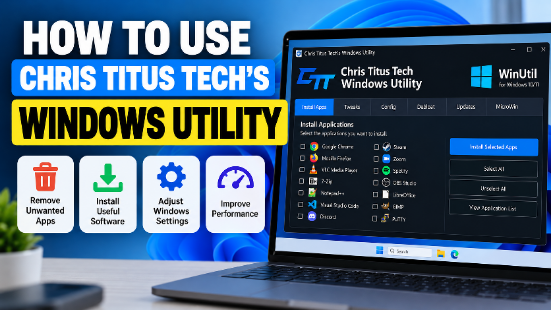
Chris Titus Tech’s Windows Utility is a free tool that helps users manage Windows settings, remove selected unwanted applications, install useful software, and adjust system performance. It provides a central interface for several Windows maintenance tasks that users would otherwise perform through different settings menus, command line tools, or software installers.
The utility is popular among people who want more control over Windows 10 and Windows 11. Beginners may find it useful because it groups many options in one place. However, some settings can affect security, system stability, and how Windows behaves, so users should understand each change before applying it.
This guide explains how to use Chris Titus Tech’s Windows Utility, how to open it, what its main features do, and how to use its options safely. It also covers common mistakes, troubleshooting steps, and frequently asked questions.
What Is Chris Titus Tech’s Windows Utility?
Chris Titus Tech’s Windows Utility, often called the Windows Utility or WinUtil, is a PowerShell based tool designed to simplify Windows configuration and maintenance.
PowerShell is a command line environment built into Windows. It allows users to run commands that manage applications, system settings, files, and other operating system features. WinUtil provides a graphical interface for many of these operations, making selected tasks easier to manage.
The tool can help users perform tasks such as removing certain preinstalled applications, installing programs, adjusting privacy settings, configuring Windows features, and applying selected performance related changes.
Its available options can change as the project develops. The exact features may also depend on the installed Windows version, system configuration, and permissions.
WinUtil is not a replacement for Windows itself, an antivirus program, or a complete system backup solution. It is a configuration tool that helps users manage selected parts of their operating system.
What Can You Do With Windows Utility?
Before using the tool, it helps to understand the main tasks it supports.
1. Remove Unwanted Applications
Windows computers often include preinstalled applications that some users never need. WinUtil provides options for removing selected applications and components.
Removing unnecessary applications can simplify the Start menu and reduce clutter. However, not every built in application is safe to remove. Some components support other Windows features or provide functionality that you may need later.
Review each item before selecting it. If you do not recognize an application, research its purpose or leave it installed.
2. Install Useful Software
The utility can help users install supported applications through its software installation interface.
Depending on the available options, you may be able to select several programs and install them in one session. This can be helpful when setting up a new computer or reinstalling Windows.
Always review the selected applications before starting the installation. Installing software through WinUtil does not remove the need to check application compatibility, licensing requirements, or security considerations.
3. Adjust Windows Settings
WinUtil includes options for changing selected Windows configurations. These may cover privacy, system behavior, background activity, and other operating system preferences.
Some changes may reduce unnecessary activity, while others may disable features you rely on. For example, changing notification behavior or background permissions can affect how applications work.
Read the descriptions of available settings carefully. Do not assume that every recommended configuration is suitable for every computer.
4. Apply Performance Related Tweaks
The utility provides selected adjustments intended to change Windows behavior and system performance.
The effect of a tweak depends on the computer. A system with limited memory and many unnecessary startup applications may benefit from different changes than a modern computer that already runs efficiently.
No single configuration guarantees faster performance. Apply only changes that address a specific problem or match your needs.
5. Manage Windows Maintenance Options
Some versions of WinUtil provide access to additional system management and maintenance features. These can help users configure Windows components or perform selected administrative tasks.
The available tools may change over time. Check the current interface rather than relying on an old screenshot or guide to identify every feature.
What You Need Before Using the Utility
Prepare your computer before making system changes. A few simple precautions can reduce the risk of losing data or disrupting important Windows features.
A Supported Windows Computer
Start with a working installation of Windows. The utility is primarily intended for Windows 10 and Windows 11, but compatibility with specific options can vary.
Microsoft ended standard support for Windows 10 Home and Pro on October 14, 2025. Some users may have access to extended security updates or other support arrangements. Check your Windows edition and support status before making long term maintenance decisions.
An Administrator Account
Many system changes require administrator privileges. You may need to approve a Windows User Account Control prompt before the utility can perform certain tasks.
Administrator access gives a program permission to make important system changes. For that reason, only run commands you understand and trust.
An Internet Connection
An internet connection is useful for retrieving the utility and installing software. Some operations may also require downloads or access to online package sources.
A Backup or Restore Option
Create a backup of important files before changing system settings. You can use an external drive or another reliable backup method.
It is also sensible to create a Windows restore point when System Protection is available. A restore point may help you reverse some system changes, although it does not replace a backup of personal files and cannot guarantee recovery from every problem.
Basic Knowledge of Your Computer
Know which Windows version you use, which applications you need, and whether your computer depends on special drivers or business software.
This information helps you avoid removing essential components or disabling features that support your daily work.
How to Download and Open Windows Utility
The first step is to obtain the utility and launch it with the correct permissions. Because it can make system level changes, you should verify that you are using the genuine project rather than an unknown copy.
Step 1: Open Windows Terminal or PowerShell
Press the Windows key and search for Windows Terminal or PowerShell.
Right click the application and select Run as administrator. Approve the permission prompt if Windows displays one.
Administrator access is important because some features cannot change protected system settings without it.
Step 2: Obtain the Current Launch Command
WinUtil is commonly launched through PowerShell using a command that retrieves and runs the utility. The exact command should come from a trusted, current version of the project.
Do not copy a command from an unfamiliar website, online comment, or random video description. A command that downloads and executes remote code can make significant changes to your computer.
If you are unsure about a command, inspect it and verify its origin before running it.
Step 3: Run the Command
Paste the verified launch command into the administrator PowerShell window and press Enter.
Wait for the utility to load. Depending on your internet connection, system configuration, and the current version, the process may take a short time.
If Windows asks for permission to make changes, confirm that the application and requested action are expected before approving it.
Step 4: Review the Interface
When the utility opens, examine the available tabs and settings before changing anything.
The interface organizes different tasks into sections. Depending on the current version, these may include application installation, system configuration, application removal, and other maintenance options.
Do not select every option simply because it is available. Start with one task that solves a specific problem.
How to Use the Main Features
The safest way to learn WinUtil is to work through one feature at a time. This makes it easier to understand what each setting changes and identify the cause of any unexpected behavior.
How to Install Applications
WinUtil can simplify the process of installing multiple supported programs.
Follow these steps:
- Open the utility and locate its application installation section.
- Review the list of available programs.
- Select the applications you actually need.
- Check your selections before proceeding.
- Start the installation process using the available control.
- Wait for the installation tasks to finish.
- Open each application to confirm that it works correctly.
This approach can save time when setting up a new Windows computer.
However, the utility may use package management services or external installers to obtain programs. Availability, installation options, and compatibility can vary. Some applications may require additional setup or a restart.
Avoid installing software you do not recognize. Installing fewer, necessary applications also makes future maintenance easier.
How to Remove Unwanted Applications
Removing unnecessary applications is one of the common reasons users try WinUtil.
First, identify the applications you no longer use. Consider whether they are ordinary applications, Windows components, or drivers that support your hardware.
Next, open the relevant application removal section and review the available choices. Select only the items you have identified as unnecessary.
Before applying the changes, check your selections again. Removing an application may also remove its settings or affect another feature that depends on it.
For beginners, it is better to remove a small number of clearly unnecessary applications than to remove everything available.
After the process finishes, restart the computer if requested. Then check the Start menu, search, notifications, and other relevant Windows features.
If an application provides an important function, such as device control or security protection, keep it unless you understand how to replace that function.
How to Apply Windows Tweaks
Windows tweaks are configuration changes that alter how the operating system behaves.
To use them, open the relevant configuration section and read each option carefully. Look for a clear explanation of what the setting changes and consider whether that change matches your needs.
For example, you might want to adjust a privacy setting, reduce unnecessary startup activity, or change selected background application permissions.
Apply only the settings that serve a clear purpose. If a description is unclear, leave the option unchanged until you understand its effect.
Some tweaks change registry values, scheduled tasks, services, or Windows policies. These changes can affect more than one application and may not be fully reversed by a simple reset.
After applying a configuration, restart Windows if required and test the affected features.
How to Use Performance Options
WinUtil includes selected options intended to help users configure Windows for their needs.
Before applying performance tweaks, identify the actual problem. A slow computer may have limited memory, insufficient storage space, too many startup programs, an outdated driver, or a background process using excessive resources.
Open Task Manager to review CPU, memory, disk, and network usage. This can help you determine whether your computer has a specific resource problem.
Then choose a relevant change rather than applying every available tweak.
For example, disabling an unnecessary startup application may reduce the time it takes to reach a usable desktop. However, disabling a required security service or device component can create new problems.
Measure performance before and after making changes. Use the same applications and tasks when comparing results. This gives you a more useful indication of whether a particular adjustment helped.
Remember that Windows performance depends on hardware, software, drivers, available resources, and workload. A tweak that helps one computer may have little effect on another.
How to Review Privacy Settings
Privacy settings control certain ways Windows and applications collect, access, or use information.
WinUtil provides access to selected configuration options that can change aspects of Windows privacy and background behavior.
Before changing these settings, determine which functions you want to keep. Some users may prefer fewer notifications or less background activity, while others depend on cloud services, diagnostic features, synchronization, or connected applications.
Read each setting and understand its purpose before applying it. A setting that reduces one type of activity may also affect a useful Windows feature.
After making a change, check the relevant application or Windows setting to confirm the expected behavior.
Do not assume that disabling one privacy option makes your computer completely private. Privacy depends on several settings, applications, account choices, and online services.
How to Use WinUtil Safely
WinUtil can make system changes easier, but it should not be treated as a tool that automatically knows the best configuration for every computer.
Use the following practices to reduce risk.
Create a Restore Point
Before applying significant system tweaks, open the Windows search menu and search for Create a restore point.
If System Protection is enabled, open the available settings and create a restore point.
A restore point can help you return selected system files, registry settings, and configuration information to an earlier state. It does not reliably recover personal files or reverse every possible change.
If restore points are unavailable, consider whether System Protection should be enabled and make a separate backup of important files before continuing.
Change One Group of Settings at a Time
Avoid selecting dozens of unrelated tweaks in one session.
Instead, make a small set of related changes, restart the computer if necessary, and test the results.
If something stops working, you will have fewer changes to investigate. You can also compare the computer’s behavior before and after each group of adjustments.
Keep Security Features Enabled
Do not disable Microsoft Defender, firewall protection, security updates, or other essential protections simply to reduce background activity.
Security services help protect your computer against threats. Turning them off can increase risk, especially if you regularly download files or browse unfamiliar websites.
If a setting affects security, understand the consequences before proceeding. For most beginners, keeping the standard Windows security protections enabled is the sensible choice.
Keep Windows Updated
Windows updates can include security fixes, compatibility improvements, and driver updates.
A configuration utility does not replace the need to maintain Windows. Check your update settings regularly and install appropriate security updates.
If you experience problems after a particular update, investigate the issue before using broad system tweaks to work around it.
Keep a Record of Changes
Write down the settings you change and why you changed them. You can also take screenshots of relevant settings before applying changes.
This record helps you understand your configuration later and can make troubleshooting easier.
Common Problems and How to Fix Them
Some users encounter errors when opening WinUtil or applying system changes. The correct solution depends on the error message and the task being performed.
Windows Utility Does Not Open
Check that you are using a compatible Windows installation and a current, verified version of the utility.
Make sure PowerShell or Windows Terminal is running with administrator permissions when required. Check your internet connection if the launch process needs to retrieve files.
If the problem continues, close the terminal and try again using a verified current launch method. Avoid disabling antivirus protection simply to force the utility to run.
A Command Produces an Error
Read the complete error message before trying another command.
An error may result from insufficient permissions, a network problem, an unavailable package, a changed Windows component, or an outdated command.
Do not repeatedly execute unfamiliar commands without understanding why they failed. If the error concerns a specific feature, troubleshoot that feature rather than applying unrelated system changes.
An Application Will Not Install
Confirm that the application is available for your Windows version and that your internet connection works.
Check whether the installer requires additional permissions or whether another installation is already running.
If the application continues to fail, use its normal installation method and follow the displayed error instructions. You do not need to install every application through WinUtil.
Windows Behaves Differently After a Tweak
Identify the most recent change and the feature that stopped working.
If the utility provides a supported way to reverse the change, review that option carefully. Otherwise, use the relevant Windows settings to restore the previous configuration where possible.
A restore point may help if the problem involves system configuration and a suitable restore point exists.
If you cannot identify the cause, avoid applying more tweaks until you have diagnosed the problem.
Is Chris Titus Tech’s Windows Utility Suitable for Beginners?
WinUtil can be useful for beginners who want a simpler way to access selected Windows configuration options. Its graphical interface can make certain maintenance tasks easier to understand than working directly with individual PowerShell commands.
However, a graphical interface does not make every operation risk free.
Beginners should start with straightforward tasks, such as installing familiar applications or reviewing unnecessary software. More advanced options involving system services, registry settings, security features, or Windows policies require additional care.
You do not need to use every feature to benefit from the utility. In many cases, the standard Windows Settings application, Task Manager, and built in maintenance tools are sufficient.
The best approach is to understand your computer’s needs, make targeted changes, and check the results rather than applying a large collection of tweaks without a clear purpose.
Conclusion
Chris Titus Tech’s Windows Utility provides a central way to manage selected Windows applications, configuration settings, and maintenance tasks.
To use it effectively, obtain a verified version, launch it with the required permissions, review the available options, and apply only changes you understand. Back up important files before making significant modifications, keep essential security features enabled, and test your system after each group of changes.
Used carefully, WinUtil can simplify some Windows maintenance tasks. Its value comes from choosing appropriate settings for your computer, not from applying every available tweak.
Frequently Asked Questions
| Questions | Answers |
|---|---|
| What is Chris Titus Tech’s Windows Utility? | It is a PowerShell based tool that provides a graphical interface for selected Windows configuration, application installation, and maintenance tasks. |
| Is Windows Utility free to use? | Yes. WinUtil is available as a free tool, although internet access and separate software licensing requirements may apply to certain tasks. |
| Does Windows Utility work on Windows 11? | Yes. It is designed to support Windows 11, but individual features may vary depending on the version and system configuration. |
| Do I need administrator access to use WinUtil? | Many features require administrator permissions because they change system settings or install and remove software. |
| Can Windows Utility make my computer faster? | It may help when an appropriate change addresses a specific performance problem, but results depend on your hardware, software, and configuration. |
| Is it safe to apply every Windows Utility tweak? | No. Some tweaks can affect security, applications, or essential Windows features. Review each option and apply only changes you understand. |