10 Best Free Tools to Extract Text From PDF Files
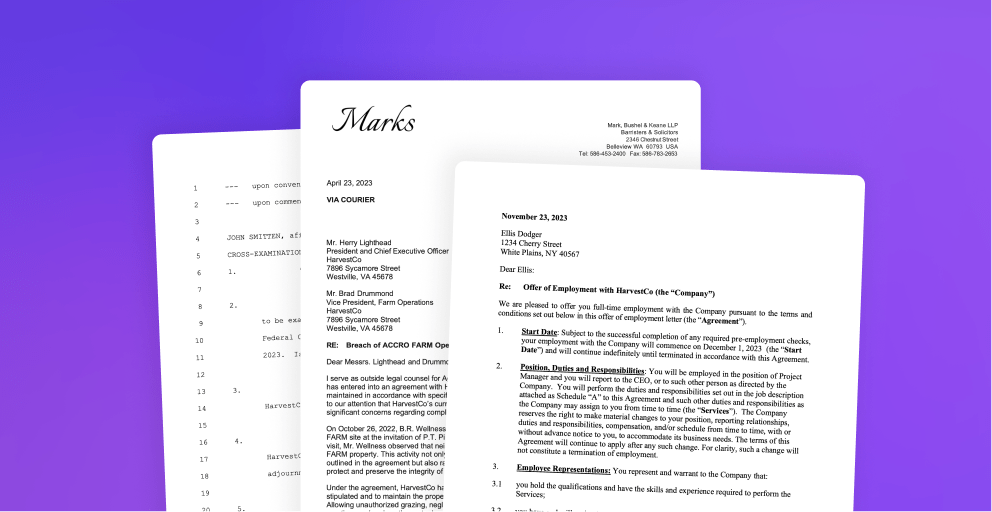
Extracting text from PDF files can save time when you need to edit documents, copy important information, prepare reports, or organize research materials. Instead of typing everything manually, you can use a free PDF text extraction tool to convert document content into editable text.
Several free tools make this process simple. Some allow you to copy text directly from a PDF, while others convert the document into a Word file or plain text format. If your PDF contains scanned pages or images of printed text, you may need a tool with Optical Character Recognition, commonly known as OCR.
The best tool depends on the type of PDF you have, the amount of text you need to extract, and your privacy requirements.
In this guide, we explore 10 of the best free tools to extract text from PDF files. We explain their main features, advantages, limitations, and ideal uses to help you choose the right option.
What Is PDF Text Extraction?
PDF text extraction is the process of retrieving written content from a Portable Document Format file and making it available for copying, editing, searching, or further processing.
For example, you might want to extract text from an academic paper, an invoice, an ebook, a business report, or a scanned contract.
The extraction process depends on how the PDF was created.
A text based PDF contains selectable text. You can often copy its content directly or use a converter to save it in another format.
A scanned PDF contains images of printed or handwritten pages. Because the words may not exist as actual text, you usually need OCR technology to recognize the characters and convert them into editable content.
Understanding this difference will help you select a suitable tool.
10 Best Free Tools to Extract Text From PDF Files
1. Adobe Acrobat Reader
Adobe Acrobat Reader is a widely used PDF application that allows users to open, read, search, and copy text from PDF documents.
If your PDF contains selectable text, you can use the selection tool to highlight the required content and copy it into a word processor or text editor.
The search function also helps you find specific words or phrases in lengthy documents.
Key features
Adobe Acrobat Reader supports PDF viewing, text selection, document searching, and basic annotation. It works well for everyday tasks that do not require advanced conversion features.
Advantages
The interface is familiar to many PDF users. You can extract small sections of text without installing a separate conversion tool.
Limitations
Some conversion and advanced document editing features require a paid subscription. Scanned PDFs may require additional OCR capabilities.
Best for: Users who need to copy text from ordinary PDF documents.
2. Google Docs
Google Docs provides a convenient way to extract text from compatible PDF files through its document conversion capabilities.
You can upload a PDF to Google Drive and open it with Google Docs. The service attempts to recognize the document content and place it into an editable document.
This method is especially useful when you want to extract text and continue editing it online.
Key features
Google Docs supports online document editing, text formatting, collaboration, and conversion of supported PDF content into an editable format. It can also recognize text in many scanned documents.
Advantages
You can access the extracted text through a web browser without installing desktop software. The resulting document can be edited, copied, and shared.
Limitations
Complex layouts, tables, columns, and unusual fonts may not convert accurately. Formatting can change during conversion.
Uploading a document also means you should consider its confidentiality and the service’s data handling practices.
Best for: Students, researchers, and office workers who want to extract and edit PDF text online.
3. Microsoft Word
Microsoft Word can open many PDF files and convert their contents into editable documents.
When you open a PDF in a compatible version of Word, the application attempts to recreate the original content using its document editing features.
Once the file opens, you can copy the text, edit it, or save it in another format.
Key features
Word provides text editing, formatting, searching, and document conversion. It is particularly useful when you need to work with the extracted content after conversion.
Advantages
The process is straightforward for many text based PDFs. You can also edit headings, paragraphs, and other document elements in the same application.
Limitations
The conversion may change page layouts, images, tables, and spacing. Availability and functionality depend on your Word version and subscription.
Best for: Users who want to convert PDF content into editable Word documents.
4. Smallpdf
Smallpdf is an online PDF utility platform that provides several document conversion tools.
Depending on the available tool and its current free usage limits, you can convert a PDF into an editable format and then copy or reuse the extracted text.
This approach is useful when you prefer working in a browser rather than installing software.
Key features
Smallpdf offers PDF conversion, compression, merging, splitting, and other document processing features. Its conversion options can help you extract text indirectly by changing the file into another format.
Advantages
The interface is simple, and many common PDF tasks require only a few steps. It is suitable for occasional document processing.
Limitations
Some features may have daily usage limits or require a paid plan. Scanned documents may need OCR support, depending on the tool used.
Best for: Users who want a simple online method to convert PDF documents.
5. PDF24 Tools
PDF24 Tools offers a collection of free PDF utilities for common document tasks.
It includes options for converting and processing PDF files. Depending on the document and selected function, you can use these tools to make text available in another format.
PDF24 also provides desktop software for users who prefer processing documents locally.
Key features
The available tools cover PDF conversion, compression, merging, splitting, and other file operations. The desktop application can be useful for repeated document processing.
Advantages
Many functions are available without payment. The desktop option also provides an alternative to uploading documents to an online service.
Limitations
Not every conversion tool extracts text directly into a plain text file. Scanned documents may require OCR, and the accuracy depends on the source quality and selected feature.
Best for: Users who need free PDF utilities for regular document tasks.
6. Sejda PDF
Sejda PDF provides online and desktop tools for working with PDF documents.
Its document editing and conversion options can help you access or reuse text from supported PDF files. It is particularly useful when you need to make small changes or process a document before extracting its content.
Key features
Sejda offers PDF editing, conversion, page management, and other document processing functions. Online and desktop options serve different working preferences.
Advantages
Read also: 10 Best Free Tools to Extract Text From PDF Files
The interface is easy to navigate, and several tools are available for common PDF tasks.
Limitations
Free usage may be restricted by document size, task frequency, or other limits. Advanced extraction requirements may need a different tool.
Best for: Users who want to combine basic PDF editing with text extraction.
7. iLovePDF
iLovePDF is an online platform that provides tools for converting, organizing, and editing PDF files.
You can use its conversion features to change a PDF into an editable document and then copy the text you need.
This method is helpful when you want to extract content from an ordinary PDF without working directly with document code.
Key features
The platform includes PDF conversion, compression, merging, splitting, and page organization. Some tools are also available through desktop or mobile applications.
Advantages
The website offers a straightforward workflow for common document tasks. You can process a PDF and reuse its text in another application.
Limitations
Free access may include restrictions, and conversion results can vary with document complexity. OCR availability depends on the selected feature and plan.
Best for: Users who need a convenient online PDF conversion service.
8. Tesseract OCR
Tesseract OCR is an open source text recognition engine that can extract text from images.
It is especially useful when a PDF contains scanned pages instead of selectable text. With the appropriate image processing and PDF handling tools, you can use Tesseract to recognize text from document pages.
Unlike many online converters, it can be used locally on your computer.
Key features
Tesseract supports multiple languages and can recognize printed text from suitable images. It also supports command line workflows that can be integrated into scripts and automated processes.
Advantages
The software is free to use and can process documents locally. It is suitable for users who need greater control over OCR workflows.
Limitations
Installation and configuration require more technical knowledge than browser based tools. Recognition quality depends on image resolution, language settings, page alignment, and document condition.
Best for: Developers, technical users, and anyone who needs OCR for scanned PDF documents.
9. OCRmyPDF
OCRmyPDF is a free, open source tool that adds a searchable text layer to scanned PDF files.
It uses OCR technology to recognize text from document images. After processing, the resulting PDF can support text searching and copying, depending on the quality of the recognition.
You can then use a PDF text extraction utility to save the recognized content as plain text.
Key features
OCRmyPDF adds OCR text layers, supports multiple languages when the required language data is installed, and helps make scanned documents searchable.
Advantages
It is useful for processing large collections of scanned PDFs. Local processing also helps users avoid uploading confidential files to online conversion websites.
Limitations
Installation requires some technical knowledge. OCR results may contain errors, especially when pages are blurry, distorted, or poorly scanned.
Best for: Users who need to make scanned PDF documents searchable and extract their text.
10. Poppler Utilities
Poppler Utilities is a collection of command line tools for working with PDF files.
One of its tools, pdftotext, extracts text from PDFs and saves it as a plain text file. This makes Poppler particularly useful when you need the document content without unnecessary formatting.
For example, you can run the following command in a suitable terminal environment:
pdftotext document.pdf output.txt
The command reads the PDF named document.pdf and saves the extracted text in output.txt.
Key features
The pdftotext utility supports direct text extraction, while its options allow users to control aspects of the output.
Advantages
Poppler is free, open source, and suitable for processing many documents. It can also be incorporated into automated workflows.
Limitations
It requires access to a command line environment and some familiarity with terminal commands. It does not automatically recognize text in image only PDFs without an OCR step.
Best for: Developers, researchers, and users who need direct text extraction in plain text format.
How to Choose the Best Free PDF Text Extraction Tool
The right choice depends on your document and the results you need.
If you only want to copy a few paragraphs, Adobe Acrobat Reader is a practical starting point.
If you want to extract text and edit it online, Google Docs may be more suitable. Microsoft Word is another useful option when you prefer working with editable documents.
For occasional PDF conversion, Smallpdf, PDF24 Tools, Sejda PDF, and iLovePDF offer convenient alternatives.
If you work with scanned documents, consider Tesseract OCR or OCRmyPDF. These tools are designed to recognize text from images.
For plain text output and automated processing, Poppler Utilities is a strong option.
Before choosing an online service, check its free usage limits and privacy practices. Avoid uploading confidential financial records, personal information, or sensitive business documents unless the service meets your security requirements.
Common Problems When Extracting Text From PDFs
PDF text extraction does not always produce perfect results.
Scanned pages produce no selectable text. Use an OCR tool to recognize the words in the document images.
The extracted text contains errors. Check the original document for blurry text, unusual fonts, or poor scan quality. Correct the output manually when accuracy matters.
The formatting looks different. PDF layouts can contain columns, tables, images, and positioned text. A plain text file may not preserve these elements.
Some characters are missing. The document may use unusual font encoding or contain damaged text information. Try another extraction method and compare the results.
Always review extracted content before using it in a report, publication, or official document.
Frequently Asked Questions
1. What is the best free tool to extract text from a PDF?
The best tool depends on your needs. Adobe Acrobat Reader works well for copying selectable text, Google Docs is useful for online conversion, and Poppler Utilities provides direct text extraction into a plain text file.
2. How can I extract text from a PDF without installing software?
You can use Google Docs or an online PDF conversion service. Upload the document where appropriate, convert it into an editable format, and copy the required text. Check privacy requirements before uploading sensitive files.
3. Can I extract text from a scanned PDF?
Yes. You generally need Optical Character Recognition technology to recognize text in scanned pages. Tesseract OCR and OCRmyPDF are free options for this purpose.
4. Can I extract PDF text into a plain text file?
Yes. Poppler Utilities includes the pdftotext command, which can save text from supported PDFs into a plain text file. Other conversion tools may offer similar functionality.
5. Are free PDF text extraction tools safe?
Many tools are suitable for ordinary documents, but security depends on the software, website, and how your files are handled. For sensitive documents, consider trusted desktop software that processes files locally.
6. Why does extracted PDF text appear out of order?
PDF files often store text according to its position on a page rather than its natural reading sequence. Documents with columns, tables, or complex layouts may produce incorrectly ordered text. Try another extraction tool and review the result manually.