How to Create AI Images Using Google Tools
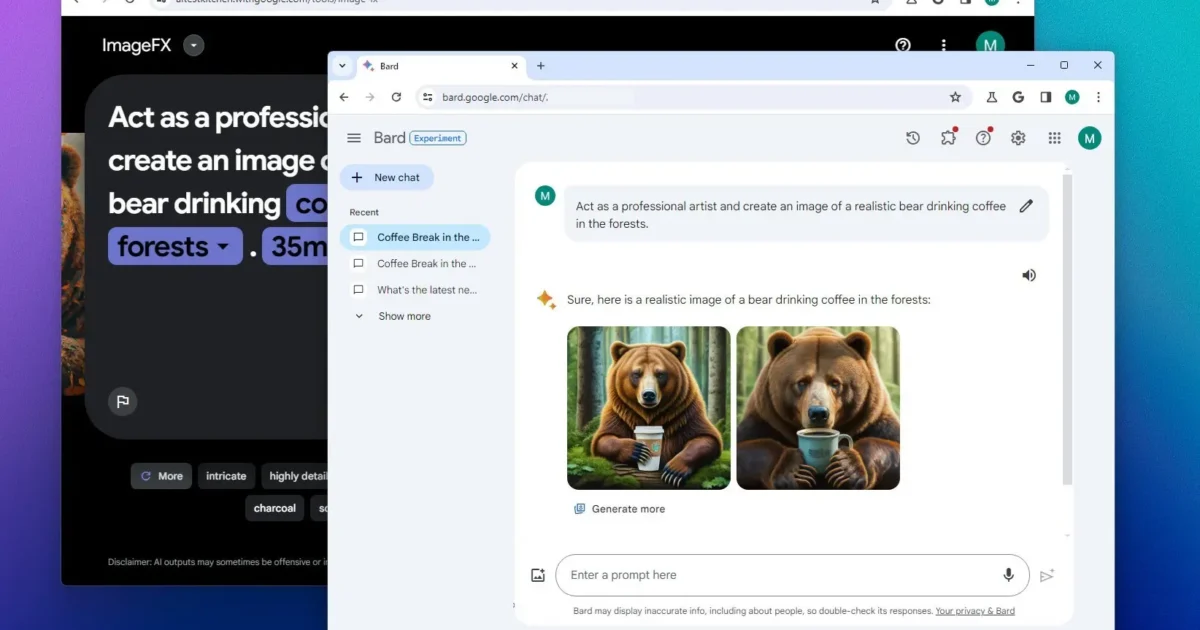
Artificial intelligence has made it easier to create images without advanced graphic design skills. With Google AI tools, you can generate original images from text descriptions, create visuals for blog posts, design social media graphics, and explore different artistic styles. You can also edit existing images with supported AI features.
If you want to learn how to create AI images using Google tools, there are several options to consider. Google provides AI powered image generation features through products such as Gemini, Google AI Studio, and Google Slides. The best option depends on what you want to create and how much control you need over the final image.
This guide explains how to generate AI images with Google tools, write effective prompts, edit generated images, and use the results for different purposes. It also covers common problems beginners may encounter and answers frequently asked questions about Google’s AI image generation features.
What Are Google AI Image Generation Tools?
Google AI image generation tools use artificial intelligence models to create images from written instructions. Instead of drawing an image manually, you describe what you want, and the AI model generates a visual based on your description.
For example, you could enter a prompt asking for a photograph of a modern office with large windows, natural lighting, and minimalist furniture. The tool would interpret your instructions and produce an image that matches the description as closely as possible.
Google offers different ways to access these capabilities.
Google Gemini is a convenient option for people who want to create images by entering simple text prompts. You can also use conversational instructions to refine an image or request changes.
Google AI Studio provides access to Google’s AI models and supports more technical experimentation. Depending on the available model and interface, you can test image generation and editing features.
Google Slides can help you incorporate AI generated visuals into presentations when compatible image generation features are available through your Google account or connected tools.
The available features, usage limits, and access requirements may vary depending on your country, account type, and Google’s current product offerings.
How to Create AI Images Using Google Gemini
Google Gemini is one of the easiest starting points for beginners. It allows users to interact with AI through natural language, making it suitable for creating images without learning complicated design software.
Follow these steps to generate your first AI image.
Step 1: Open Google Gemini
Open Gemini in your web browser or launch its mobile app if it is available on your device.
Sign in with your Google account when required. Check that image generation is available for your account and region.
The interface may change as Google introduces new features, so the exact location of image generation options can vary.
Step 2: Write a Clear Image Prompt
A prompt is the instruction you give the AI to describe the image you want it to create.
For example, you could enter:
“Create a realistic image of a small modern home surrounded by green plants. Include large glass windows, warm natural sunlight, a clean garden, and a peaceful atmosphere. Use a professional architectural photography style.”
This prompt gives Gemini several useful details about the subject, environment, lighting, and visual style.
Avoid using instructions that are too general. A prompt such as “Create a house” leaves many decisions to the AI, which may produce an image that does not match your expectations.
Step 3: Generate the Image
Submit your prompt and allow Gemini to process the request.
If image generation is supported, the tool will produce an image based on your instructions. Depending on the feature and model, you may be able to request additional variations or make changes through follow up prompts.
Review the result carefully. Check whether the image includes the objects, colors, composition, and other details you requested.
Step 4: Improve the Image With Follow Up Prompts
You do not always need to start again when the first result is not satisfactory.
You can ask Gemini to modify the image using additional instructions.
For example, you might enter:
“Make the garden greener, add more sunlight through the windows, and use a wider camera angle.”
You could also ask it to change the background, adjust the color palette, or make the image look more like a photograph or digital illustration.
Specific instructions usually make it easier to communicate the changes you want.
Step 5: Download and Save the Image
When you are satisfied with the result, use the available download or save option.
Choose an appropriate location on your device so you can find the image later. Before using it on a website or in a presentation, check its dimensions and visual quality.
You can repeat this process to create illustrations, product concepts, blog graphics, and other types of visual content.
How to Write Effective Google AI Image Prompts
The quality of an AI generated image depends partly on how clearly you describe the desired result.
A useful prompt identifies the main subject and explains how the image should look. You do not need complicated language. Simple, specific instructions are often more effective than long descriptions filled with unnecessary details.
Consider these five elements when writing your prompt.
Subject: Explain what the image should show. This could be a person, building, product, landscape, animal, or abstract concept.
Setting: Describe where the subject appears. Examples include a modern office, tropical beach, home kitchen, or mountain landscape.
Style: Specify whether you want a realistic photograph, watercolor painting, digital illustration, 3D render, or minimalist graphic.
Lighting and colors: Include details such as soft daylight, dramatic shadows, warm colors, or a neutral background.
Composition: Explain how the elements should be arranged. You might request a close up portrait, a wide landscape, or a centered product with empty space around it.
Here is an example of a detailed prompt:
“Create a realistic photograph of a ceramic coffee mug on a wooden table in a bright modern kitchen. Use soft morning sunlight, neutral colors, natural shadows, and a simple composition. Leave empty space on the right side for text. Use a horizontal format suitable for a blog banner.”
This prompt gives the AI a clear subject, setting, style, lighting direction, and layout.
For better results, introduce one change at a time when refining an image. This makes it easier to understand how each instruction affects the output.
How to Create AI Images Using Google AI Studio
Google AI Studio is another option for users who want to experiment with Google’s AI models.
It is particularly useful for people interested in testing prompts, comparing model behavior, and exploring more advanced AI workflows.
The exact image generation capabilities depend on which models and features Google makes available in the interface.
Step 1: Open Google AI Studio
Open Google AI Studio in your browser and sign in if necessary.
Read also: Best Free Readability Checker for Essays Online
Review the available models and tools. Look for a model or interface that explicitly supports image generation or image editing.
Not every model supports the same capabilities, so check the selected model before starting.
Step 2: Select an Image Capable Model
Choose a model that supports the image task you want to perform.
Some models focus primarily on text, while others can process images or generate visual content. Available options may change as Google updates its AI services.
If your goal is to create a new image from a description, make sure the selected model supports that function.
Step 3: Enter Your Prompt
Describe the image in clear, direct language.
For example:
“Generate a professional product image of a reusable water bottle on a clean white background. Use soft studio lighting, realistic materials, subtle shadows, and a centered composition.”
Submit the prompt and review the generated result.
Step 4: Test and Refine Your Results
Try changing individual prompt details to see how they affect the image.
You might experiment with different lighting conditions, backgrounds, artistic styles, or camera angles.
If the interface supports image editing, you may also be able to provide an existing image and describe the changes you want.
Google AI Studio can be useful for structured experimentation. However, some features may require additional setup, and advanced usage can involve model specific settings or API access.
How to Use Google AI Images for Different Projects
Once you understand the basic process, you can create visuals for a range of personal and professional projects.
Creating Images for Blog Posts
AI images can help illustrate articles, tutorials, and informational pages.
For example, a technology article could use an illustration of a computer workspace, while a gardening article could feature a realistic image of a small vegetable garden.
Choose images that directly support the article’s subject. Make sure the visual adds value instead of simply repeating the headline.
Designing Social Media Graphics
You can generate backgrounds, decorative illustrations, and visual concepts for social media posts.
When writing your prompt, consider the platform and intended layout. A square image may work well for some feed posts, while a vertical composition may be more suitable for stories or short video covers.
If you need accurate text inside the graphic, consider generating the background first and adding the text separately using a design tool. AI generated text can contain spelling mistakes or distorted letters.
Creating Product Images
AI tools can generate product concepts and marketing visuals.
For example, you could create a concept image of a reusable bottle, a skincare container, or a piece of furniture.
However, AI generated product images may not accurately represent a real product’s dimensions, packaging, logo, or physical appearance. If customers need to see the actual item they will purchase, use accurate product photography or carefully verify the generated result.
Preparing Educational Materials
Teachers, students, and content creators can use AI images to illustrate abstract ideas, explain processes, or make presentations more visually engaging.
For instance, a science lesson could include an illustration of the solar system, while a business presentation could use a conceptual image of a modern workplace.
For educational materials, verify important details before presenting the image as an accurate representation of a real object or scientific process.
How to Get Better Results From Google AI Image Generators
Generating a useful image often requires some experimentation. These practices can help you improve the results.
Be specific about important details. Explain the subject, setting, colors, lighting, and composition instead of relying on a short, general instruction.
Keep your prompt focused. Too many unrelated requirements can make the result less consistent. Prioritize the details that matter most.
Use reference images when supported. Some Google AI tools allow you to provide an existing image for editing or visual guidance. This can help when you want to preserve a particular subject or modify an existing design.
Check the output carefully. AI generated images may contain distorted hands, unusual object shapes, inconsistent shadows, or inaccurate details. Inspect the image before publishing or sharing it.
Consider the final image size. A visual intended for a website banner may need a different composition from an image designed for a mobile screen or printed document.
Understand usage restrictions. Review the applicable terms, account limitations, and content policies before using generated images commercially. Avoid requesting images that imitate protected logos or misleadingly represent real people or events.
Common Problems When Creating AI Images With Google
Sometimes, the generated image may not match your prompt. This does not necessarily mean the tool is malfunctioning.
If the image contains the wrong objects, rewrite the prompt to describe the subject more precisely. If the colors are incorrect, specify the desired color palette. If the composition is unsuitable, explain where the main subject should appear.
If image generation is unavailable, check whether you are signed in, whether the feature is supported in your region, and whether your account has reached its usage limit.
If an image contains incorrect text, generate the visual without the text and add the wording separately with an image editing or design application.
You should also remember that different AI models can produce different results from the same prompt. Testing an alternative model may help when your current option struggles with a particular task.
Conclusion
Creating AI images using Google tools is a straightforward process once you understand how prompts and image generation work.
Google Gemini offers a convenient starting point for beginners, while Google AI Studio provides additional opportunities to experiment with supported AI models. Both can help you explore visual ideas, although their available features and usage limits may differ.
To get useful results, write clear prompts, specify the visual style, and refine the output when necessary. Always review generated images for accuracy and quality before using them in professional projects.
With practice, you can use Google AI tools to create original visuals for blogs, presentations, social media content, educational materials, and other creative projects.
Frequently Asked Questions
1. Can I create AI images using Google for free?
Google may provide free access to image generation through certain products and account types. However, availability, daily limits, and access to specific models can vary. Check the current limits shown in the tool you use.
2. Which Google tool is best for creating AI images?
Google Gemini is a convenient option for beginners who want to generate images using text prompts. Google AI Studio is worth exploring if you want to test supported models or experiment with more advanced features.
3. How do I create an AI image from text using Google?
Open a Google AI tool that supports image generation, enter a clear description of the image you want, and submit the prompt. Review the result and use follow up instructions to refine it if needed.
4. Can I edit existing images with Google AI tools?
Some Google AI models and interfaces support image editing. Depending on the available features, you may be able to upload an image and describe changes to its background, appearance, or other elements.
5. Can I use Google AI generated images for commercial purposes?
Commercial use depends on the applicable product terms, content policies, and other legal considerations. Review the current terms before using generated images in advertisements, products, or other commercial projects.
6. How can I make Google AI generated images look more realistic?
Describe the subject, environment, lighting, materials, and camera angle in detail. Use phrases such as realistic photography, natural lighting, accurate proportions, and detailed textures when appropriate. Review the result and refine your prompt to correct visible problems.