Best Free Online Image Resizers for Social Media
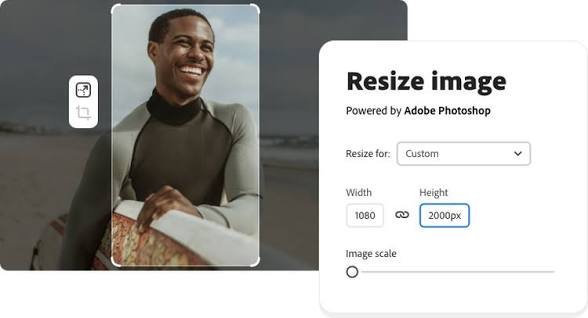
Images play an important role in social media marketing, personal branding, and online communication. However, each social media platform uses different image dimensions for posts, stories, profile pictures, cover photos, and advertisements. Uploading an image with the wrong dimensions can cause unwanted cropping, poor presentation, or reduced visual quality.
Free online image resizers offer a simple way to adjust image dimensions without installing software. These tools allow users to resize photos directly in a web browser, making them useful for beginners, content creators, small business owners, and digital marketers.
The best free online image resizers for social media help users prepare images for platforms such as Facebook, Instagram, TikTok, LinkedIn, Pinterest, and X. Some tools also provide preset dimensions, cropping options, compression features, and ready made templates.
This article explores the best free online image resizers, explains their main features, and helps you choose the right tool for your needs.
What Is an Online Image Resizer?
An online image resizer is a web based tool that changes the dimensions of an image. You can upload a photo, enter new dimensions, select a preset size, and download the resized image.
For example, you might have a square photo that you want to use in an Instagram Story. An image resizer can help you adjust the photo to fit the vertical format without requiring advanced editing skills.
Most online image resizing tools support common file formats such as JPG, JPEG, and PNG. Some also support WebP and other image formats.
Depending on the tool, you may be able to resize images by entering pixel dimensions, choosing a social media preset, adjusting the aspect ratio, or selecting a preferred file size.
Many tools offer free features, although some restrict advanced editing options, premium templates, or the number of downloads available.
Best Free Online Image Resizers for Social Media
Several online tools make image resizing easier. The following options offer different features, so the best choice depends on your editing needs and preferred workflow.
1. Canva
Canva is a popular online design platform that helps users create and edit graphics for social media. It offers templates for Instagram posts, Facebook covers, Pinterest pins, YouTube thumbnails, and other digital content.
Users can start with a social media template, upload an existing image, and adjust the design to fit the required dimensions. This approach works well when you need to resize an image and add text, logos, backgrounds, or other design elements.
Canva also allows users to create custom sized designs. This feature is useful when a platform requires dimensions that are not included in the available templates.
The free version provides access to many design features, but some resizing options and premium assets may require a paid plan.
Best for: Users who want to resize images and create complete social media graphics in one place.
2. Adobe Express
Adobe Express provides browser based tools for editing images and creating digital content. Its image resizing features help users adapt photos for different social media platforms.
You can choose a suitable image size, adjust the composition, and prepare your graphic for publishing. The platform also offers design templates, text editing, and other visual editing features.
Adobe Express is useful for people who want a straightforward editing experience without using complex desktop software.
Some features are available for free, while others require a paid subscription. Available tools and usage limits may change over time.
Best for: Beginners and content creators who need image resizing alongside basic graphic design features.
3. iLoveIMG
iLoveIMG is an online image editing service that focuses on practical tasks such as resizing, compressing, cropping, and converting images.
Its image resizing tool allows users to change dimensions by pixels or percentage. Resizing by pixels is useful when you need to match the exact requirements of a social media platform.
For example, if you need an image with a width of 1080 pixels, you can enter that value and adjust the height according to your preferred dimensions.
The platform is particularly useful for people who want to resize several images without creating a complete graphic design.
Free usage may include limits on file size, processing volume, or certain advanced features.
Best for: Users who need quick image resizing and other basic image editing functions.
4. Fotor
Fotor is an online photo editing platform with image resizing and enhancement features. It helps users adjust image dimensions while making basic improvements to their photos.
You can use it to prepare product images, promotional graphics, profile pictures, and other social media visuals.
Fotor also includes editing features for adjusting brightness, contrast, and other visual properties. These options are useful when you want to resize an image and make minor improvements before publishing it.
However, not every feature is available in the free version. Some editing tools and export options may require payment.
Best for: Users who want to resize photos and make simple visual adjustments in the same tool.
5. Kapwing
Kapwing is an online content creation platform that supports image editing, video editing, and social media design.
Its canvas resizing features help users adapt visual content to different formats. This is useful when converting an existing graphic into a square post, a vertical story, or a landscape image.
Kapwing is especially relevant for content creators who work with several types of social media content. Instead of switching between multiple applications, they can manage different visual formats within one online workspace.
Some features may include restrictions on the free plan, such as export limitations or access to advanced tools.
Best for: Content creators who need to resize images as part of a broader social media content workflow.
6. Simple Image Resizer
Simple Image Resizer is a straightforward online tool designed to change image dimensions without unnecessary editing features.
Users can upload an image, select the desired dimensions or resizing percentage, and process the file.
Its simple interface makes it suitable for beginners who only need to change an image’s width or height.
Unlike more comprehensive design platforms, it focuses on the basic resizing process. This can make it a practical choice when you do not need templates, text effects, or other design elements.
Always review the final image to ensure that the proportions remain correct and the subject is not distorted.
Best for: Users who want a simple tool for resizing images quickly.
7. ResizePixel
ResizePixel is an online image editing tool that supports image resizing, cropping, compression, and file conversion.
It allows users to adjust image dimensions and prepare files for different online uses. Its resizing options can help you create images that meet social media specifications.
The tool is useful when you need more control over image width and height but do not require a complete graphic design platform.
Depending on the selected operation, you may also be able to reduce the file size or change the image format.
Free availability and supported file options can vary, so check the tool’s current limits before processing large batches of images.
Read also: How to Create AI Images Using Google Tools
Best for: Users who want direct control over image dimensions and basic file optimization.
Comparison of the Best Free Online Image Resizers
Choosing the right image resizer depends on whether you need simple dimension changes or additional design features.
| Tool | Main Features | Best Use |
|---|---|---|
| Canva | Templates, custom dimensions, graphic design | Social media graphics |
| Adobe Express | Image resizing, templates, basic editing | General content creation |
| iLoveIMG | Resizing, compression, cropping, conversion | Everyday image editing |
| Fotor | Resizing, photo editing, visual adjustments | Photo preparation |
| Kapwing | Canvas resizing, image and video editing | Multi format content creation |
| Simple Image Resizer | Basic dimension changes | Quick resizing tasks |
| ResizePixel | Resizing, cropping, compression, conversion | Image dimension control |
The availability of specific features depends on each platform’s current free plan.
If you only need to change image dimensions, a dedicated resizing tool may be sufficient. If you also need text, templates, logos, and branded designs, a more comprehensive platform may be a better choice.
Recommended Image Sizes for Social Media
Using suitable image dimensions helps your content appear correctly across social media platforms. The following sizes are common starting points, but platform specifications can change.
For Instagram, a square post commonly uses dimensions of 1080 by 1080 pixels. A portrait post can use 1080 by 1350 pixels, while a Story or Reel cover commonly uses a vertical canvas of 1080 by 1920 pixels.
Portrait images can occupy more screen space in the feed, while vertical images suit full screen content.
A Facebook feed image can use a square or landscape format, depending on the content. A square image of 1080 by 1080 pixels is a practical option for many posts.
Facebook cover photos require different dimensions from regular posts. Check the current specifications for your page or profile before resizing a cover image.
TikTok
Vertical content is commonly designed at 1080 by 1920 pixels. This format suits TikTok videos and related vertical graphics.
Keep important text and visual elements away from areas covered by interface buttons or captions.
A square image of 1200 by 1200 pixels can work for many LinkedIn feed graphics. Landscape images are also suitable for certain professional posts.
For company banners and profile graphics, use the dimensions specified for the particular LinkedIn placement.
Pinterest pins commonly use a vertical format, with 1000 by 1500 pixels serving as a useful starting point.
A clear vertical design can display product images, instructions, infographics, and other visual content effectively.
Before publishing, confirm the current recommended dimensions for your chosen platform and content type.
How to Resize Images for Social Media Online
Resizing an image usually takes only a few steps.
Step 1: Choose an image resizer.
Select a tool that supports your image format and provides the dimensions you need.
Step 2: Upload your image.
Choose a photo or graphic from your device. If the image contains sensitive information, consider whether the service processes files on its servers or directly in your browser.
Step 3: Select the required dimensions.
Choose a social media preset or enter the width and height manually. Use the correct aspect ratio to avoid unwanted stretching.
Step 4: Adjust the image if necessary.
Crop the image to focus on the main subject. Check that important text, faces, and logos remain visible.
Step 5: Download the resized image.
Save the processed file and review it before uploading it to social media. Check its dimensions, sharpness, and overall appearance.
Following these steps helps you prepare images that fit the intended format without needing advanced editing skills.
Tips for Maintaining Image Quality
Resizing an image changes its dimensions, but it does not automatically improve its quality. A few simple practices can help you get better results.
Start with a high quality image. A sharp original image usually produces a better result than a small or blurry source file.
Maintain the aspect ratio. Keep the relationship between width and height consistent unless you intentionally want to crop the image. This prevents people, products, and objects from appearing stretched.
Avoid enlarging small images too much. Increasing an image’s dimensions cannot reliably restore missing detail. If the original file is too small, the resized result may look blurry.
Choose the right file format. JPG is often suitable for photographs, while PNG can work well for graphics with sharp edges or transparency. WebP may also be useful when supported by your chosen platform.
Balance image quality and file size. Compression can reduce upload sizes, but excessive compression may create visible artifacts. Review the final file before publishing.
Check the final appearance on mobile. Most social media users view content on mobile devices, so make sure text is readable and the main subject remains clear.
How to Choose the Best Free Image Resizer
The best tool depends on your specific requirements.
If you create branded graphics regularly, Canva or Adobe Express may offer a convenient combination of resizing and design features.
If you need to process images quickly, iLoveIMG, Simple Image Resizer, or ResizePixel may be more suitable.
If your workflow includes both image and video content, Kapwing may help you manage different formats in one place.
Before choosing a tool, consider its free usage limits, supported file formats, available dimensions, export quality, and privacy practices. You should also determine whether you need batch processing, custom dimensions, or built in templates.
A simple tool is often sufficient for occasional resizing. For regular social media work, a platform with reusable templates and design features may save time.
Frequently Asked Questions
1. What is the best free online image resizer for social media?
The best option depends on your needs. Canva and Adobe Express are useful for resizing and designing graphics, while iLoveIMG and ResizePixel are practical for basic image editing.
2. Can I resize images online without installing software?
Yes. Many online image resizers work directly in a web browser. You can upload an image, adjust its dimensions, and download the result without installing a desktop application.
3. Does resizing an image reduce its quality?
Resizing can affect image quality, particularly when you enlarge a small image or compress a file excessively. Starting with a high quality original and choosing appropriate dimensions helps preserve detail.
4. What image size is best for social media posts?
The ideal dimensions depend on the platform and content type. A square image of 1080 by 1080 pixels is a useful starting point for many posts, while vertical content often requires a taller format.
5. Can I resize multiple images at once for free?
Some online tools support batch resizing, allowing you to process several images in one operation. However, the number of files you can process may depend on the tool and its free plan.
6. Are free online image resizers safe to use?
Many are suitable for everyday image editing, but privacy practices vary. Review the service’s privacy policy and avoid uploading confidential or sensitive images unless you understand how the files are processed and stored.